
SalesForce (External Client Apps) on Multiple Organizations
April 15, 2026
This guide will walk you through the required steps to support using a Salesforce External Client App (ECA) across multiple organizations. When an ECA is created in Salesforce, it can only connect to users within the organization that created it. To allow the ECA to be used across multiple organizations, you must complete the required setup steps before it can connect to users outside the original organization. The customer's Salesforce admin does not need to give anyone their Salesforce credentials, they can run the second set of steps below.
⚠️ This setup resolves the error 'Cross-org OAuth flows are not supported for this external client app'. That error usually means the External Client App was created in your SourceOrg but has not yet been installed/deployed/approved in the customer's TargetOrg.
Terminology
| Term | Meaning |
|---|---|
| SourceOrg | The Salesforce org where the External Client App was created |
| TargetOrg | The customer's Salesforce org where users are trying to connect |
| APP_API_NAME | API Name of the External Client App |
| OAUTH_SETTINGS_API_NAME | Metadata name of the OAuth settings attached to the External Client App |
- The first thing you need to do is create an ECA within Salesforce. If you have already done this proceed to step 2, otherwise check out our how to guide.
- Install SalesForce CLI
- Generate a SalesForce project
sf project generate --name unified-sf - Navigate into project
cd unified-sf - Login to your Source organization, this is the organization where you have created the External client app
sf org login web --alias SourceOrg - Retrieve the app metadata (Replace APP_API_NAME with your app name, which can be found at Setup → External Client Apps → open your app → settings → basic information → API Name
sf project retrieve start --metadata ExternalClientApplication:APP_API_NAME --target-org SourceOrg sf project retrieve start --metadata ExtlClntAppOauthSettings --target-org SourceOrgℹ️ After retrieval, look in
force-app/main/default/extlClntAppOauthSettings/for a file likesalesforce-test-app_oauth.extlClntAppOauthSettings-meta.xml. The part before.extlClntAppOauthSettings-meta.xmlis yourOAUTH_SETTINGS_API_NAME. It is usually NOT the same asAPP_API_NAME(it often ends with_oauth), so confirm it from the retrieved file name instead of guessing. - Create a zip of the project folder to give to the customer who wants to install your app.
zip -r ../my_project.zip . --exclude "*/.git/*" --exclude "*/.sfdx/*"
Customer Steps (Customer Salesforce admin)
- Customer opens the project folder
cd my_project
- Install SalesForce CLI
- Customer admin logs into the TargetOrg
sf org login web --alias TargetOrg
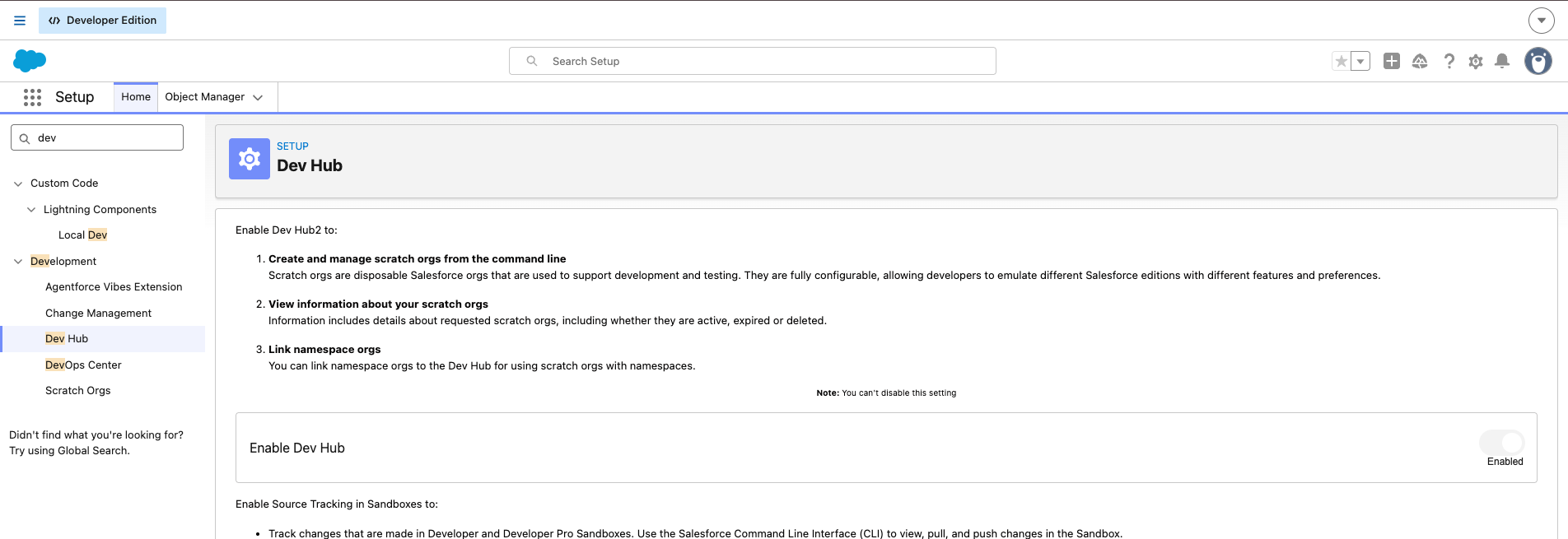
- The customer will need to make some changes within their Salesforce to deploy the app. In the SalesForce Dev Hub > Settings > Setup > Dev Hub, enable both 'Enable Unlocked Packages and Second-Generation Managed Packages' and 'Enable Dev Hub'

- Customer deploys the ECA app
sf project deploy start --metadata ExternalClientApplication:APP_API_NAME --target-org TargetOrg
sf project deploy start --metadata ExtlClntAppOauthSettings:APP_API_NAME_oauth --target-org TargetOrg
ℹ️ Replace
APP_API_NAME_oauthabove with the realOAUTH_SETTINGS_API_NAMEfrom the retrieved file name (it may differ fromAPP_API_NAME).
Alternative: deploy both metadata types together:
sf project deploy start --metadata ExternalClientApplication --metadata ExtlClntAppOauthSettings --target-org TargetOrg
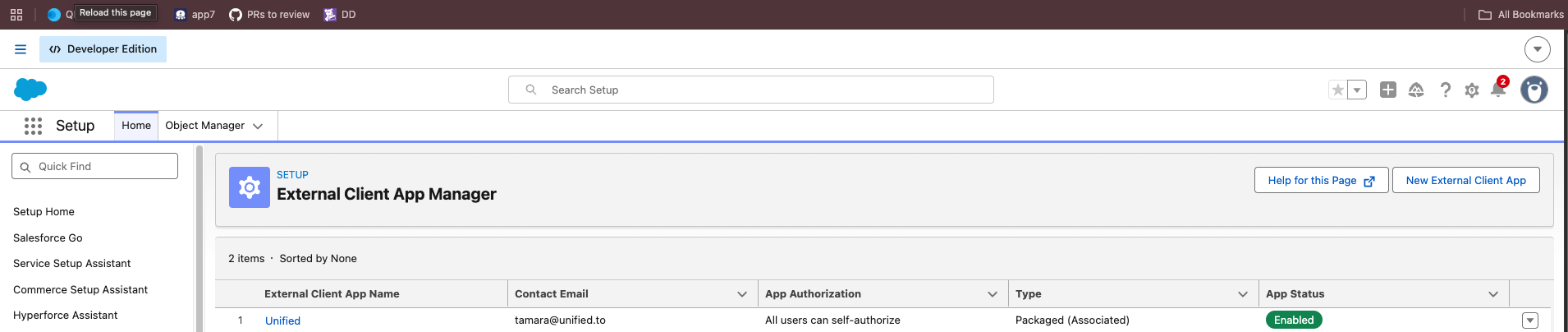
- The customer can then verify that the app has been added to their organization by visiting Setup → External Client Apps → external client app manager where they should see your app installed.
- Configure and approve access in the TargetOrg. The admin should review and configure:
- Permitted users
- Profiles / permission sets
- OAuth policies
- Refresh token policy
- IP restrictions, if applicable
- Admin-approved users, if the org requires admin approval
- The customer can now create a connection to your app
Once the app is deployed and access is granted, the end user can retry the normal Salesforce connection flow through Unified and the cross-org OAuth error will be resolved.
Long-term application-distribution recommendation
For repeated customer onboarding, the preferred long-term approach is to package the External Client App as a Salesforce package and share a package install link with customer Salesforce admins, instead of asking each admin to manually run metadata deployment commands.
- You create the External Client App once in SourceOrg.
- You package the app and OAuth settings.
- You share the package install link with customer admins.
- The customer Salesforce admin installs the package into TargetOrg.
- The customer Salesforce admin approves/configures access.
- End users connect normally through OAuth.