
How to create a token-based connection in Highlevel
April 23, 2026
This guide walks you through creating a HighLevel token-based connection using a sub-account (location) API key in Unified.
⚠️ Important Context
HighLevel operates on two levels:
- Agency level (company)
- Sub-account level (location) ✅ (token-based authentication works only here)
To access CRM and HRIS data, you must use a sub-account (location) API key.
Note: HighLevel offers multiple ways to create connections. To avoid issues, follow every step in this guide carefully.
✅ Prerequisites
- You must have Admin or Owner access to the sub-account.
🔧 Step-by-Step Setup
- Navigate to Your Sub-Account
Go to your HighLevel sub-account (location).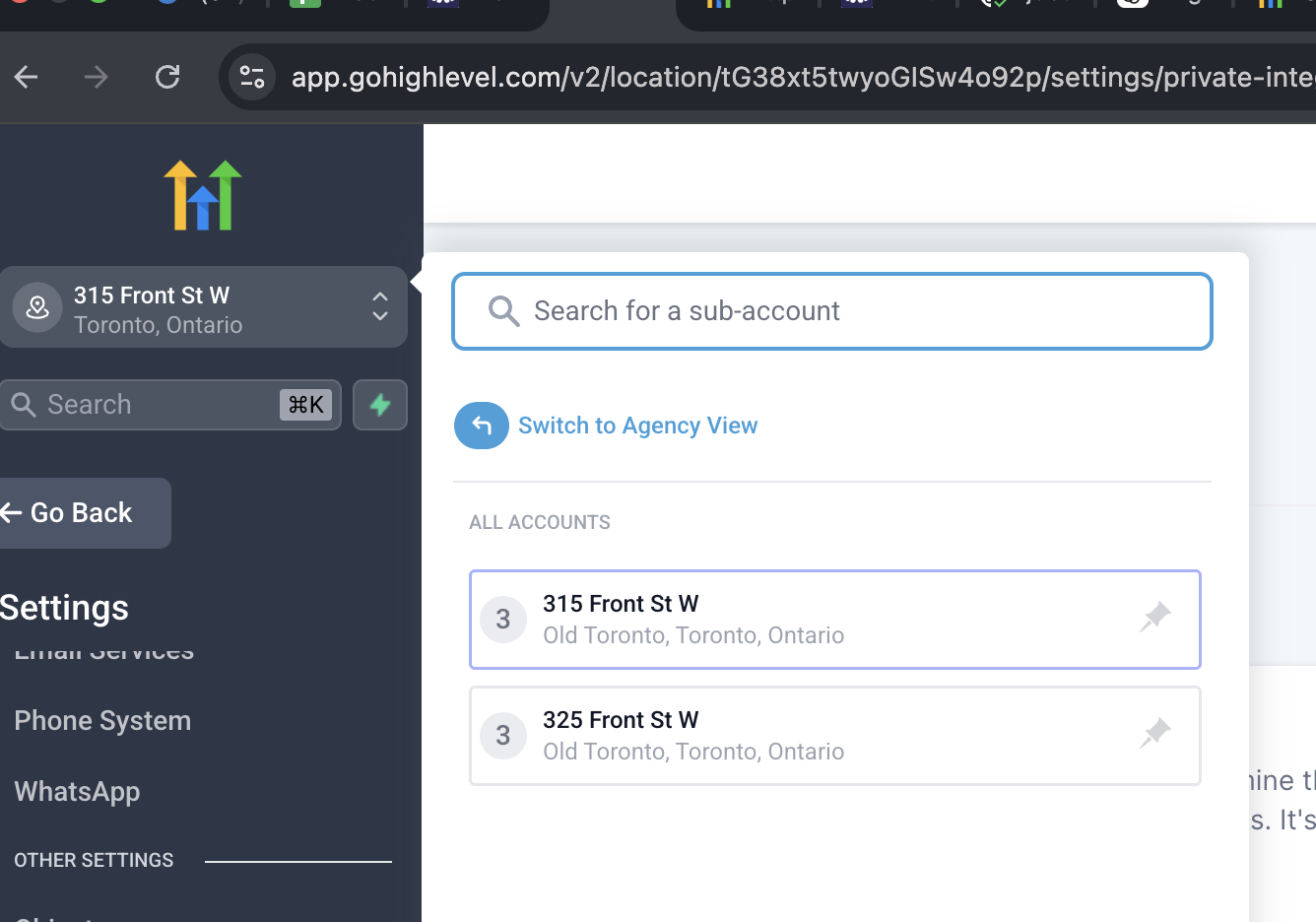
- Open Private Integrations
Go to Settings → Private Integrations (inside the sub-account)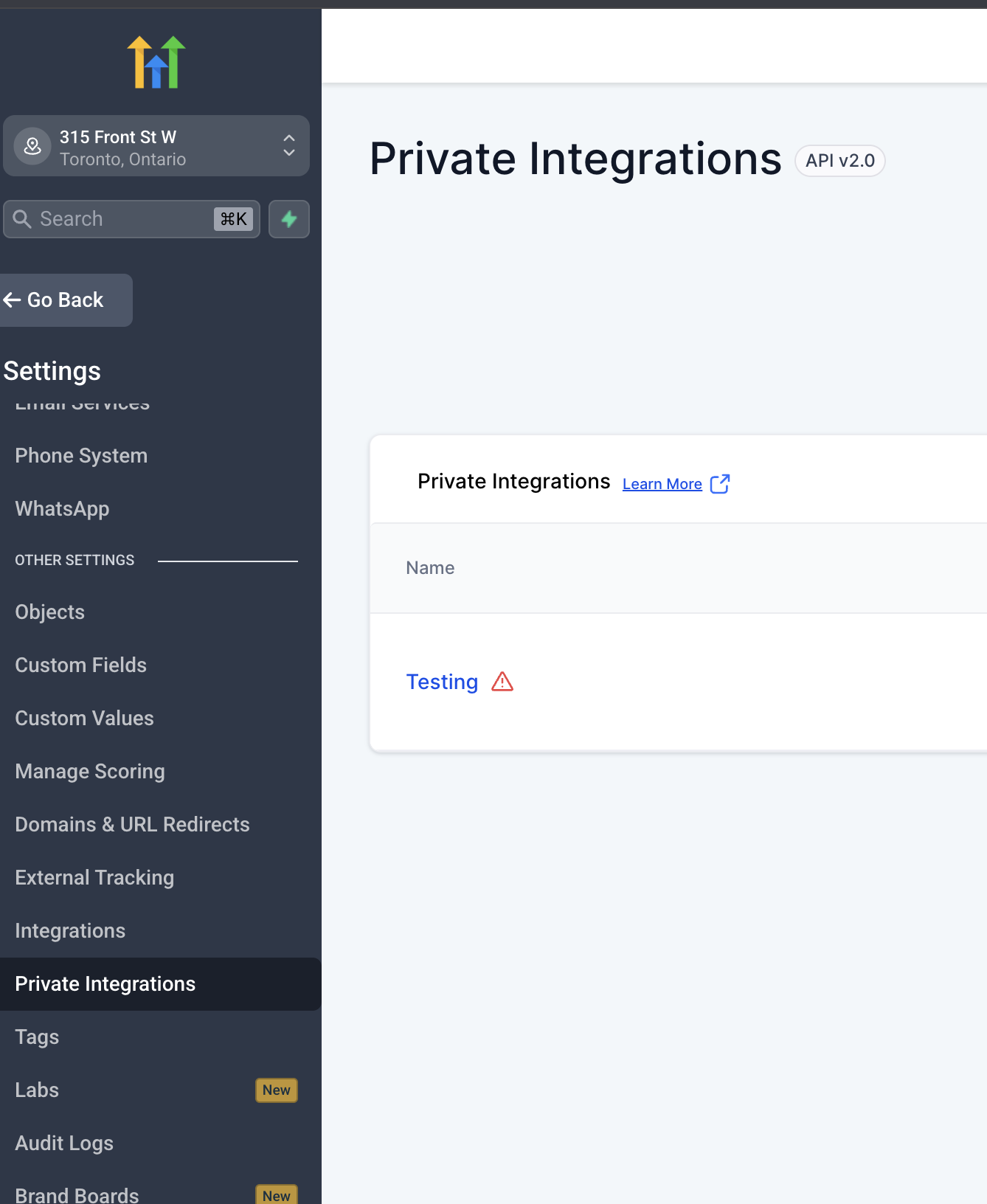
- Create a New Integration
Click Create Integration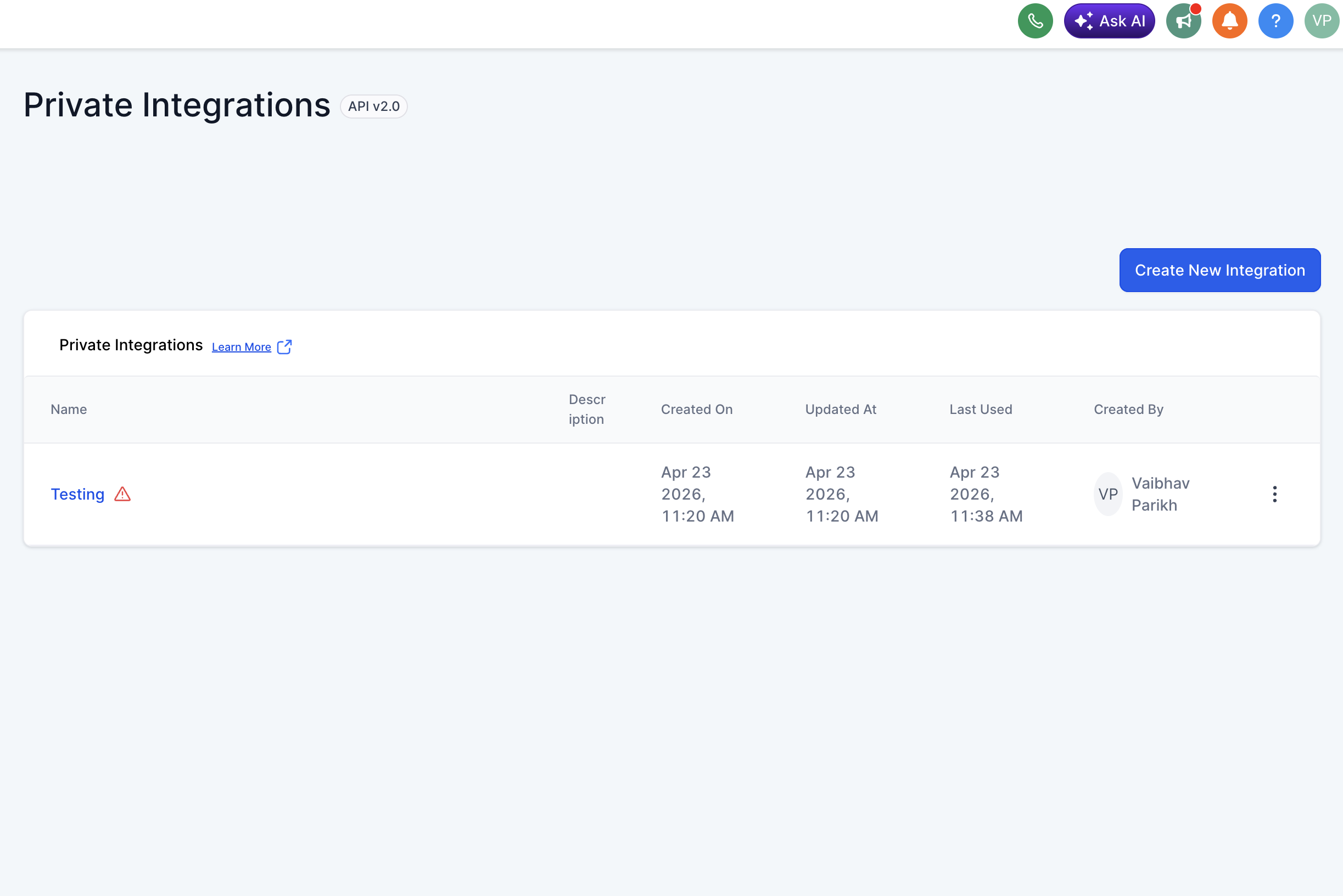
- Name Your Integration
Provide a clear name for your token (e.g.,Unified Integration)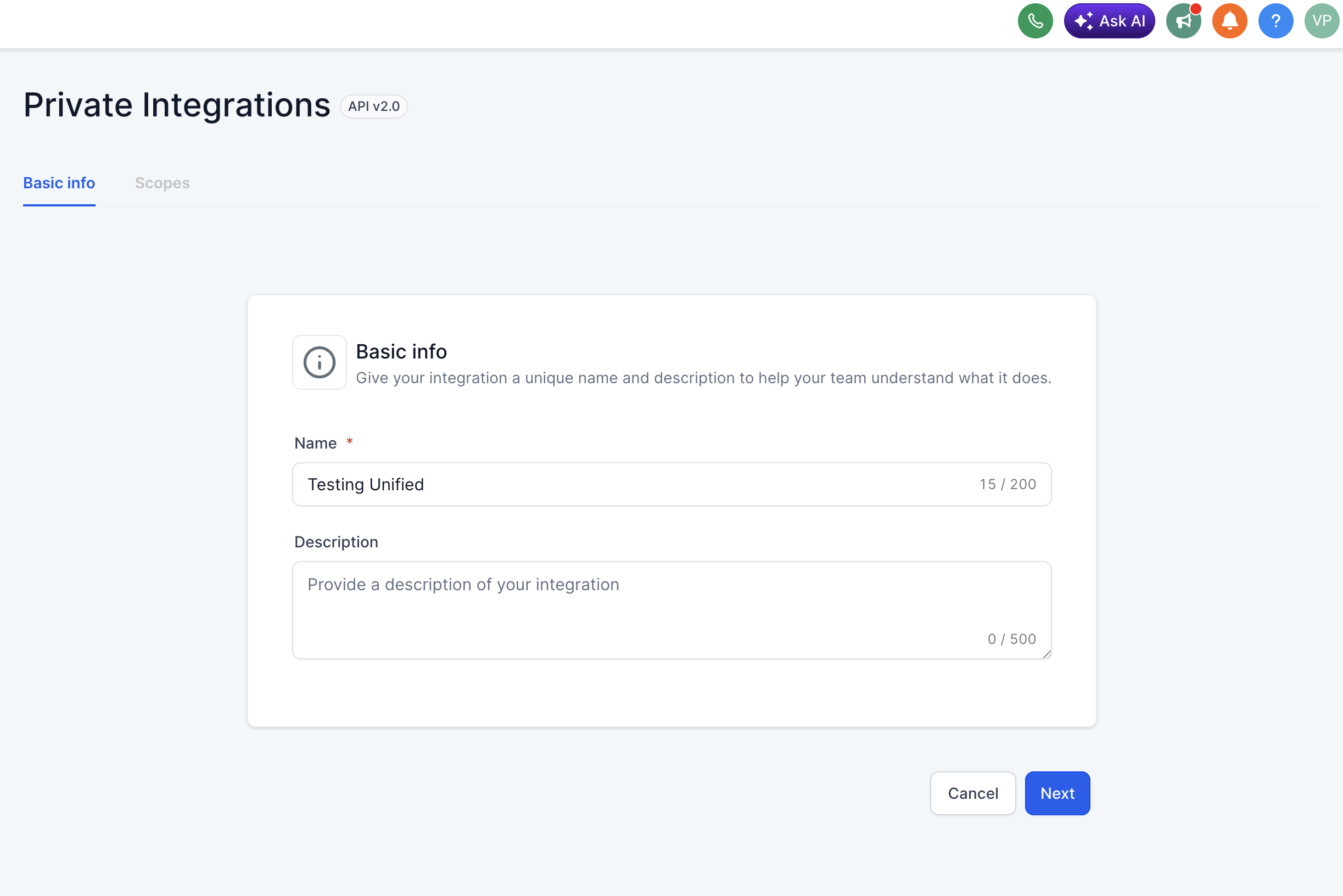
- Select Required Scopes
Choose scopes based on your use case:Permission Resource HighLevel Scopes Read CRM Contact contacts.readonlyWrite CRM Contact contacts.writeRead CRM Company businesses.readonly,locations/tags.readonlyWrite CRM Company businesses.write,locations/tags.writeRead CRM Deal opportunities.readonlyWrite CRM Deal opportunities.writeRead HRIS Employee users.readonlyWrite HRIS Employee users.writeRead CRM Lead contacts.readonlyWrite CRM Lead contacts.writeRead CRM Pipeline opportunities.readonlyRead CRM Event forms.readonly,contacts.readonlyWrite CRM Event contacts.writeReference: https://marketplace.gohighlevel.com/docs/Authorization/Scopes - Create and Confirm
Click Create, then click Confirm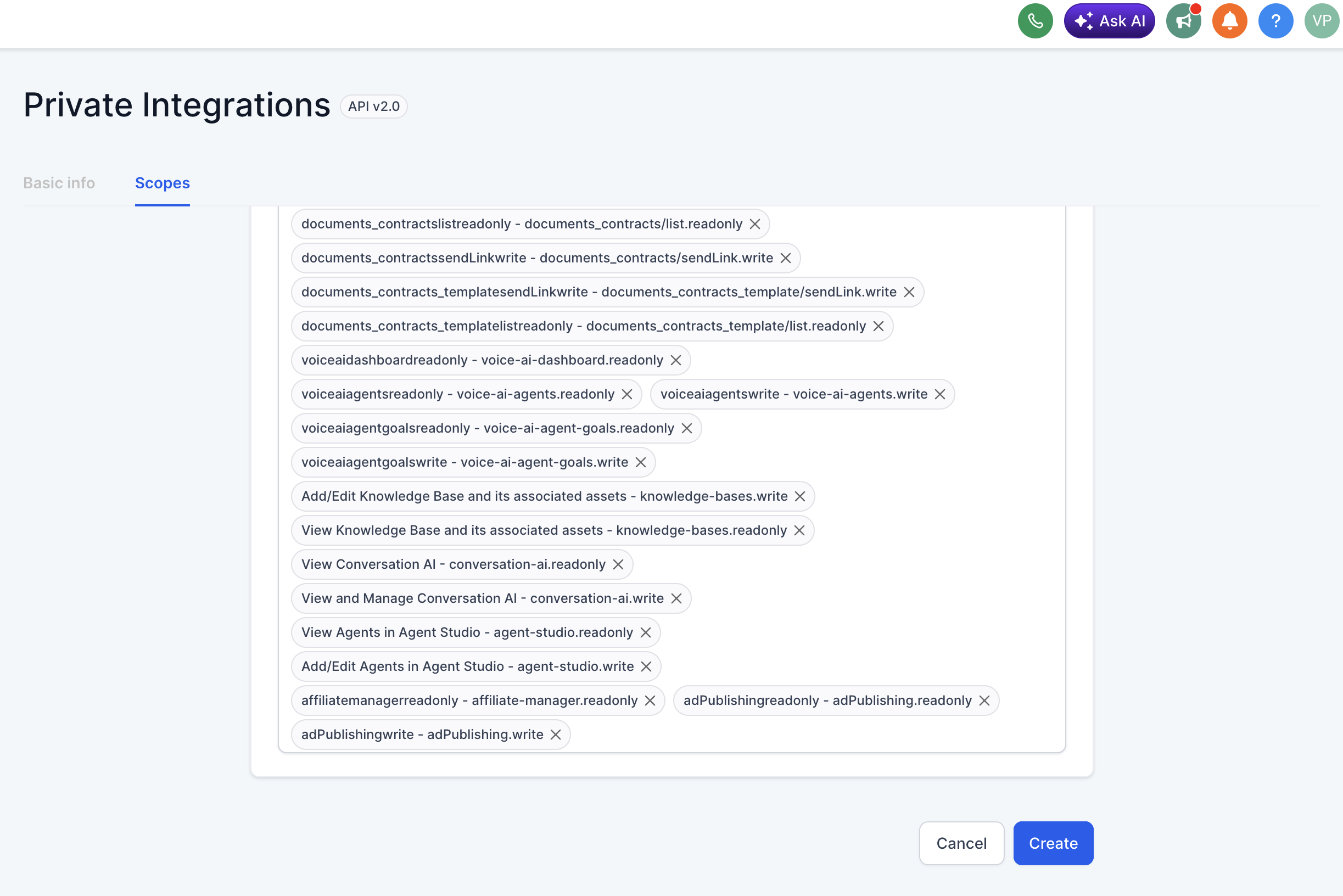
- Copy API Token
You will receive an API Token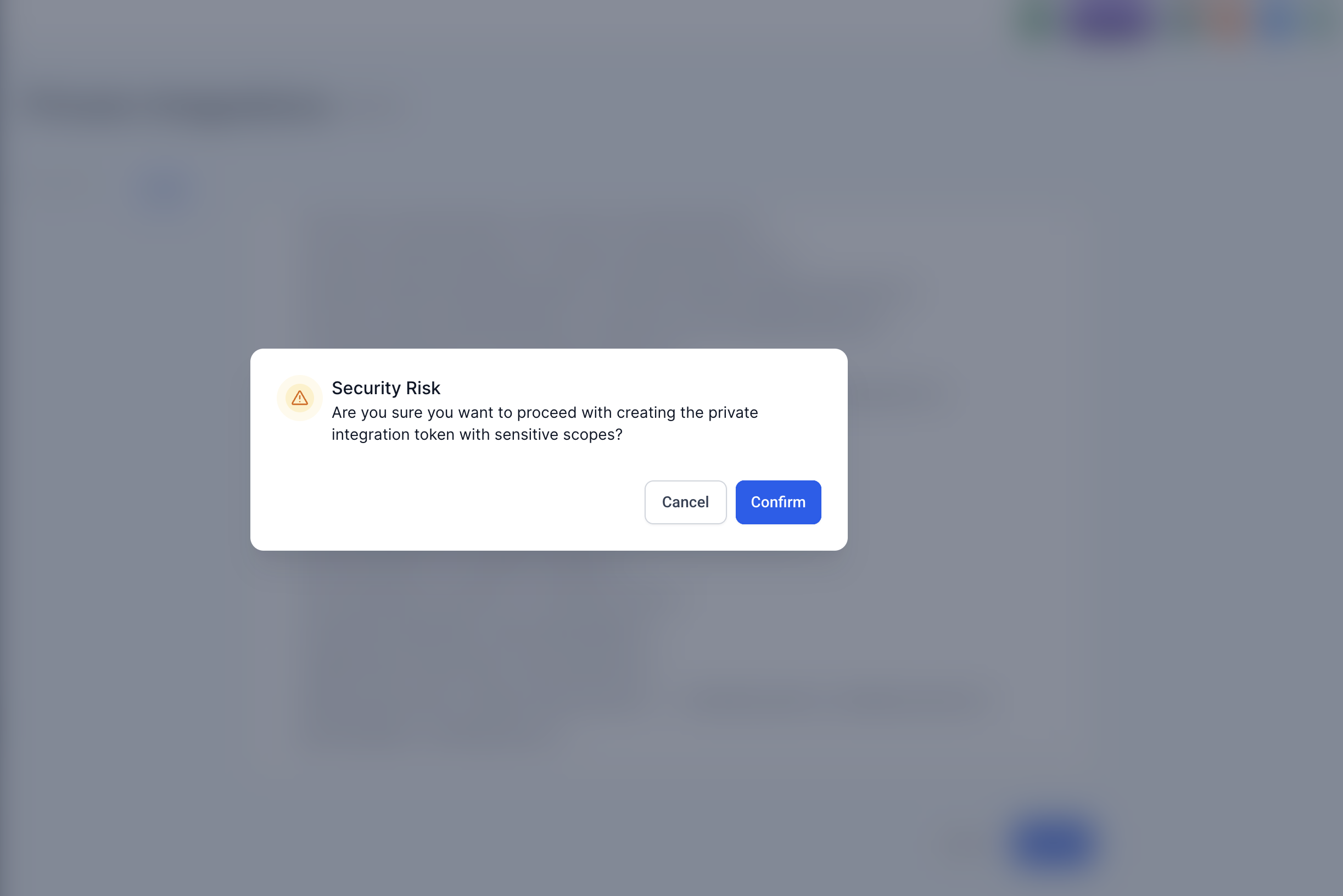
Store it securely (you won't be able to retrieve it later)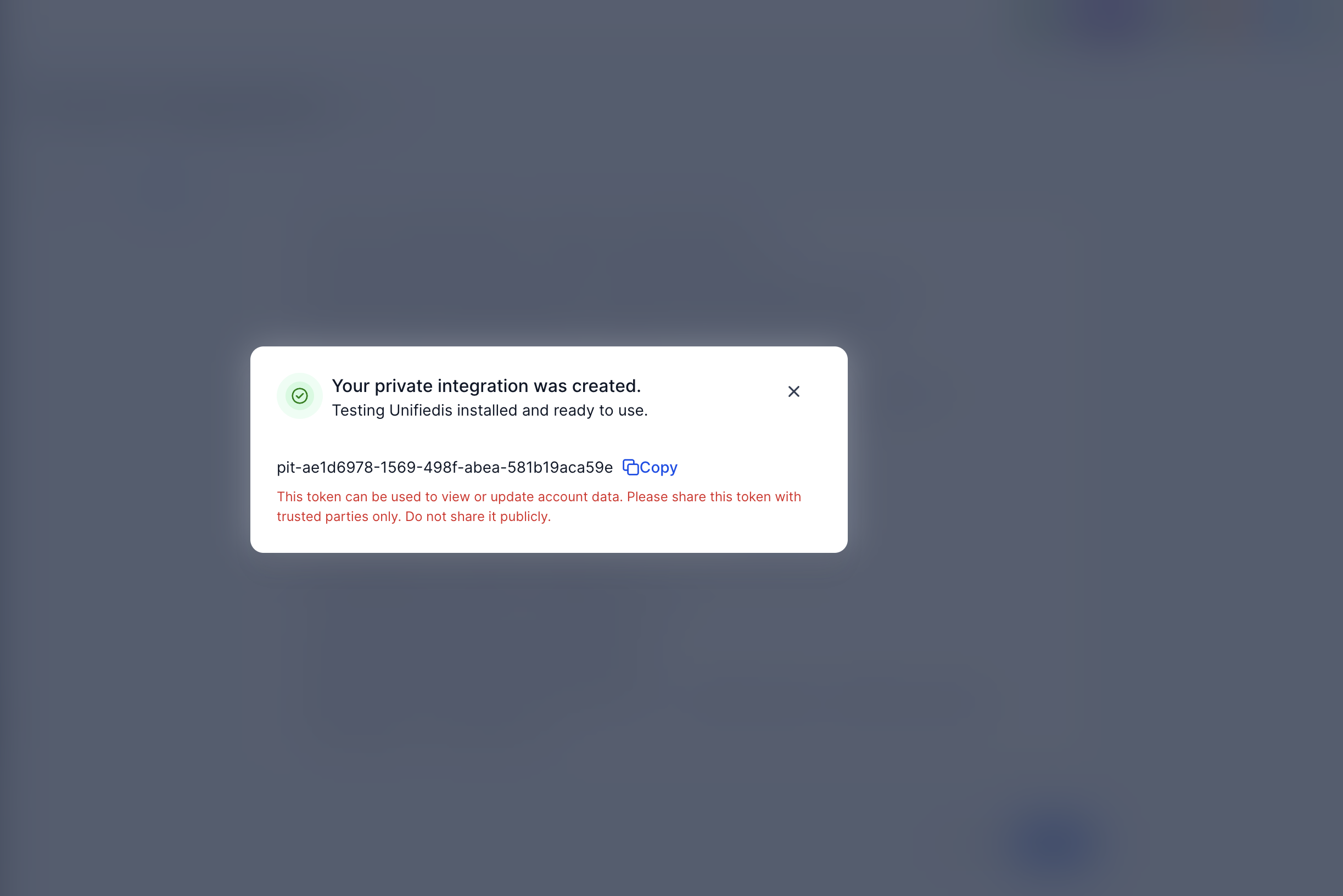
- Get Location ID
To find your Location ID: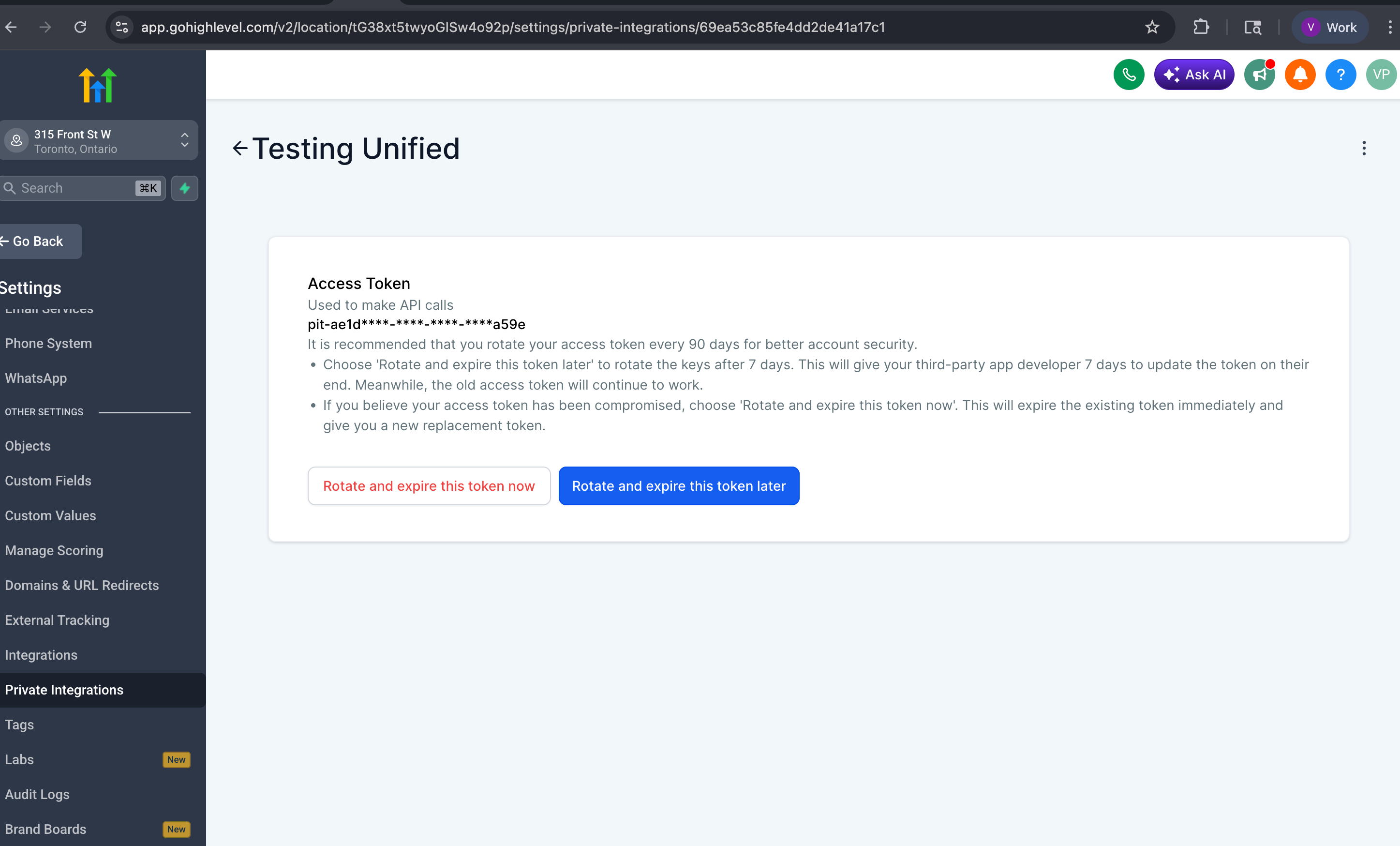
Look at the URL of your sub-account
Example:https://app.gohighlevel.com/v2/location/tG38xt5twyoGISw4o92p/settings/private-integrations/...
The value after/location/is your Location ID →tG38xt5twyoGISw4o92p - Connect in Unified
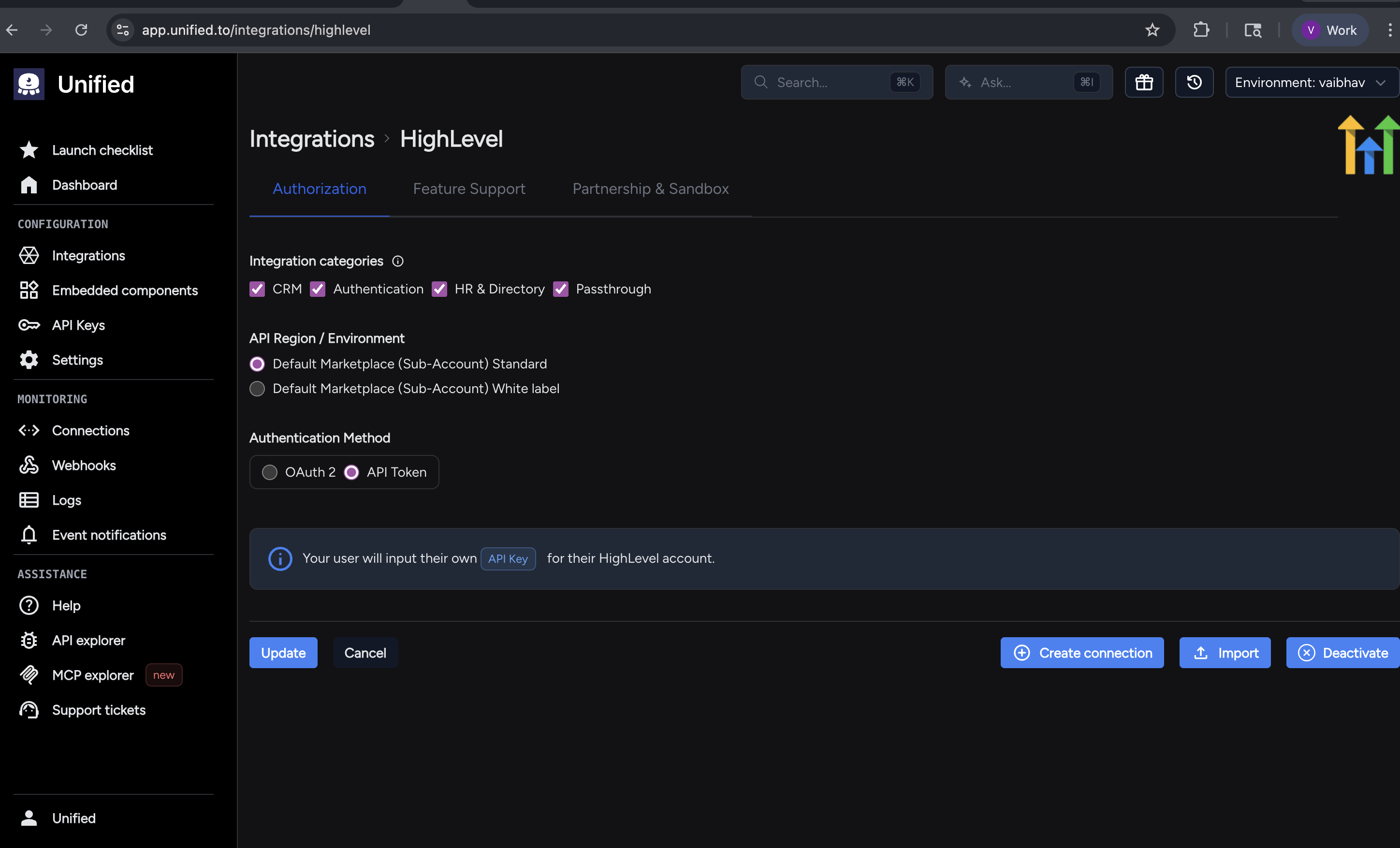
- Go to: https://app.unified.to/integrations/highlevel
- Select API TOKEN
- Click Activate
- Create Connection
Paste API Token and Location ID, then click Create Connection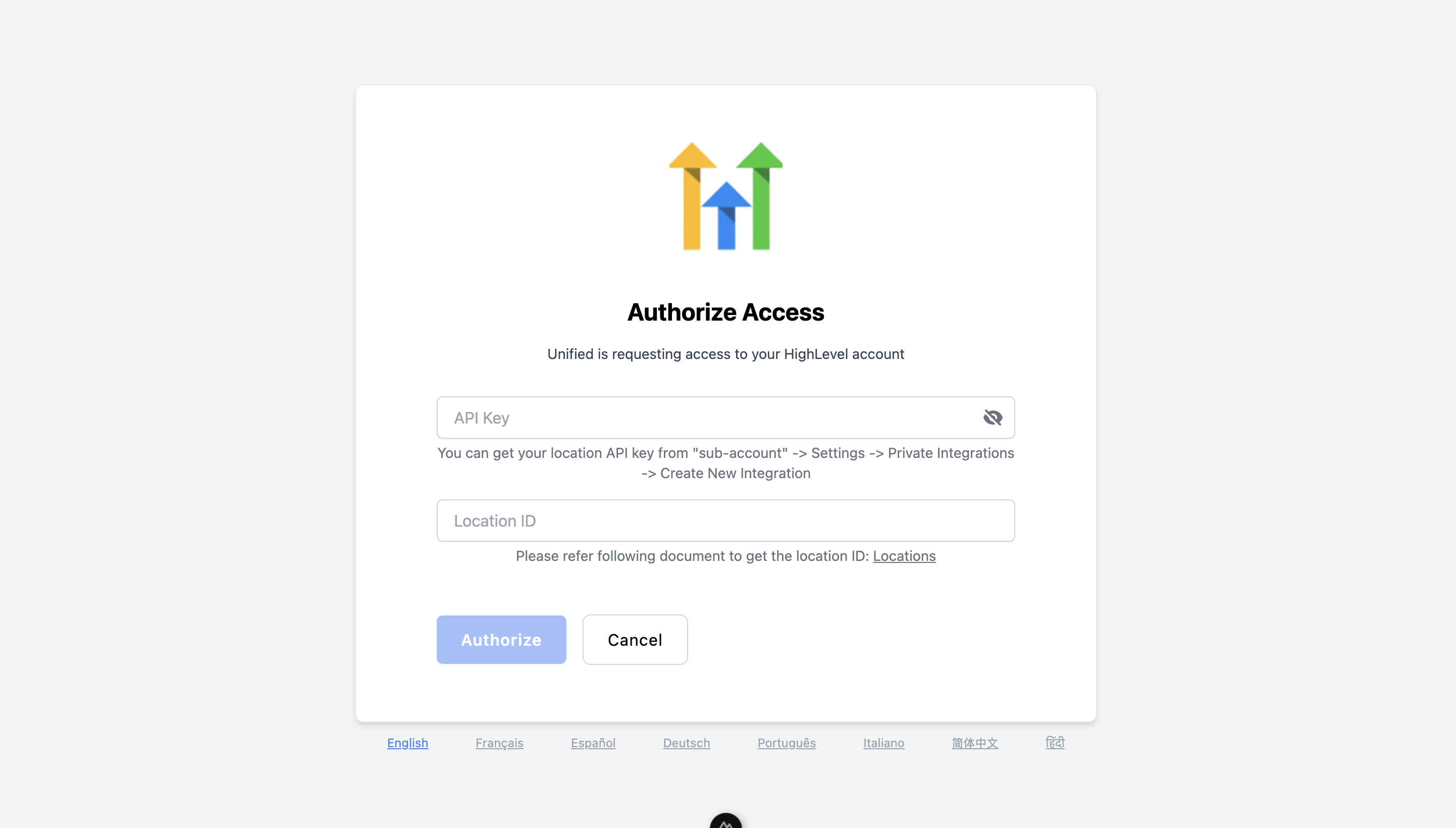
✅ Done
Your HighLevel token-based connection should now be successfully set up in Unified.
If it doesn't work, double-check:
- You created the token at the sub-account level
- The correct scopes are selected
- The Location ID matches the sub-account
If you have any more doubts or issues, please contact the Unified.to team for support.