
Using Secrets Managers in Unified
June 24, 2026
Unified can store connection and workspace integration credentials in your own external secrets manager / vault account. This gives you more control over where sensitive API credentials are stored while still letting Unified read and refresh credentials when it needs to make API calls.
You can create multiple secrets managers and choose which one should be used by default, for specific environments, and also for specific authorized connections.
Unified currently supports the following solutions, which we will call 'Secrets Managers' elsewhere in this article:
- AWS Secrets Manager
- Azure Key Vault
- Google Cloud Secrets Manager
- HashiCorp Vault
- Composio
What You Can Configure
With Secrets Managers, you can:
- Create more than one secrets manager for a workspace.
- Set a default secrets manager for new credentials.
- Override the default for specific environments, such as
Productionor custom environments. - Keep different environments isolated in different vaults when your security policy requires it.
For example, you can store production credentials in one AWS Secrets Manager vault and sandbox credentials in a separate vault, while still managing both from the same Unified workspace.
When To Use This
Use multiple secrets managers if:
- Your production and sandbox credentials must be stored separately.
- Different teams own different environments.
- You need credentials stored in region-specific or environment-specific vaults.
- You want separate vaults for different environments or teams within the same workspace.
- Each customer should use their own secrets manager, for example by giving each customer a dedicated environment that routes to that customer's vault, providing for maximum security.
If you only need one vault for the whole workspace, configure a single default secrets manager.
Step 1: Create A Secrets Manager
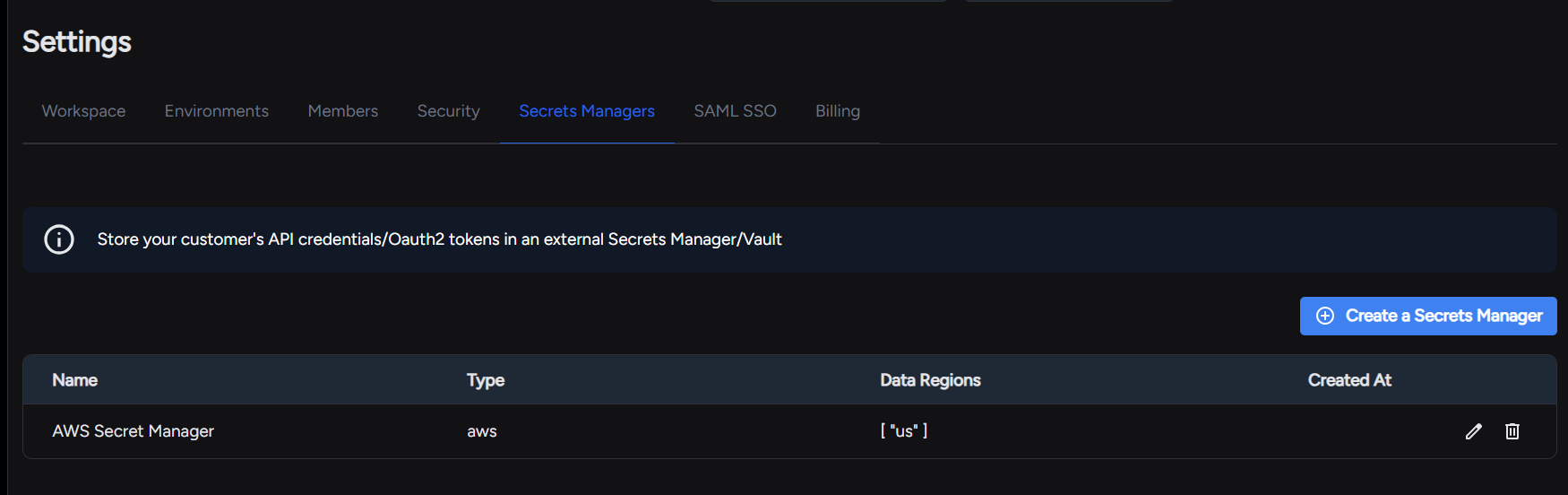
Open the Secrets Managers settings page:
https://app.unified.to/settings/secrets-managers
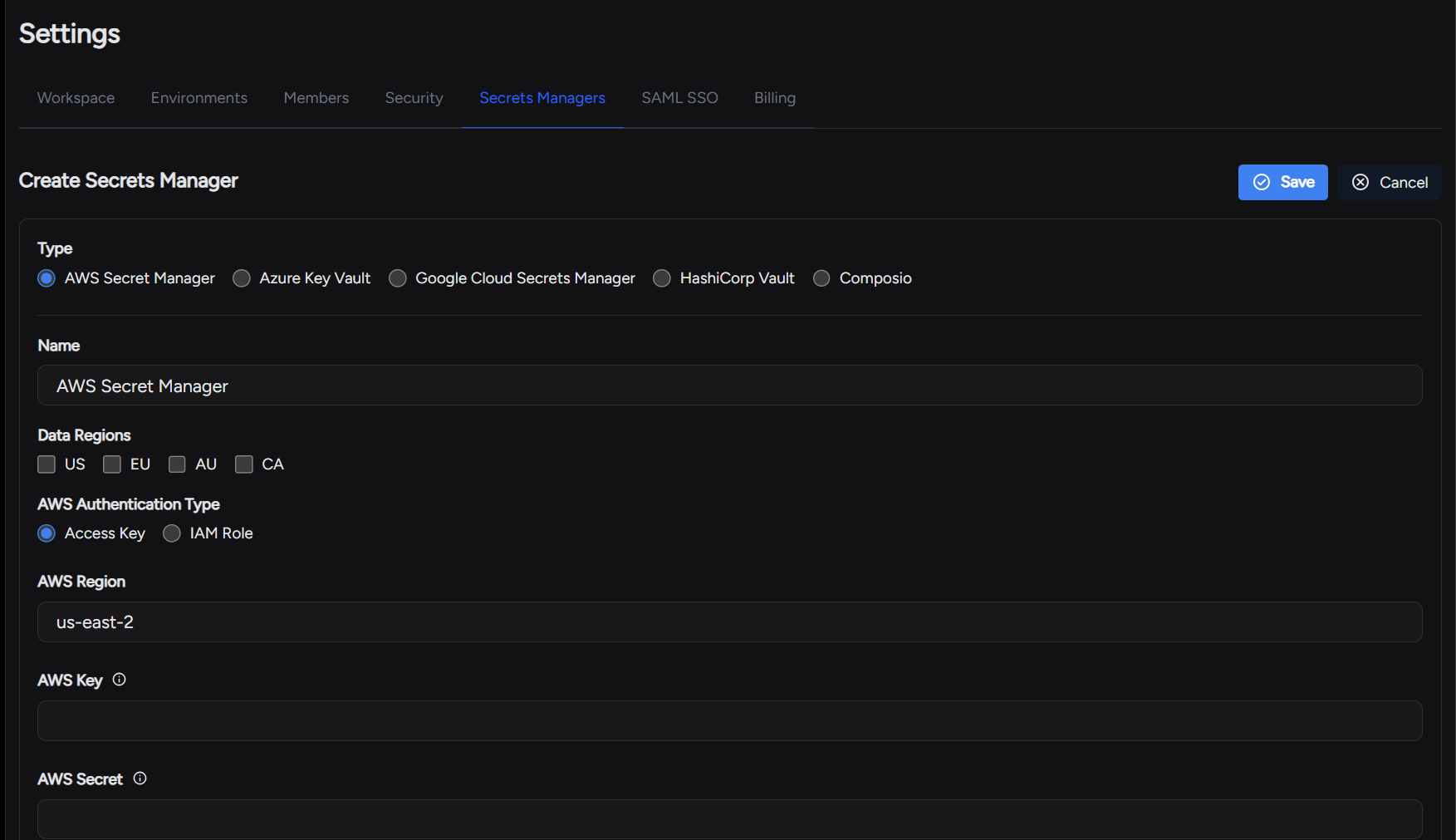
From there, create a secrets manager and choose the provider you want to use. Unified supports providers such as AWS Secrets Manager, Azure Key Vault, Google Secret Manager, HashiCorp Vault, and Composio.
Add the provider-specific authentication details, then save the secrets manager.
Step 2: Configure Where Credentials Should Be Stored
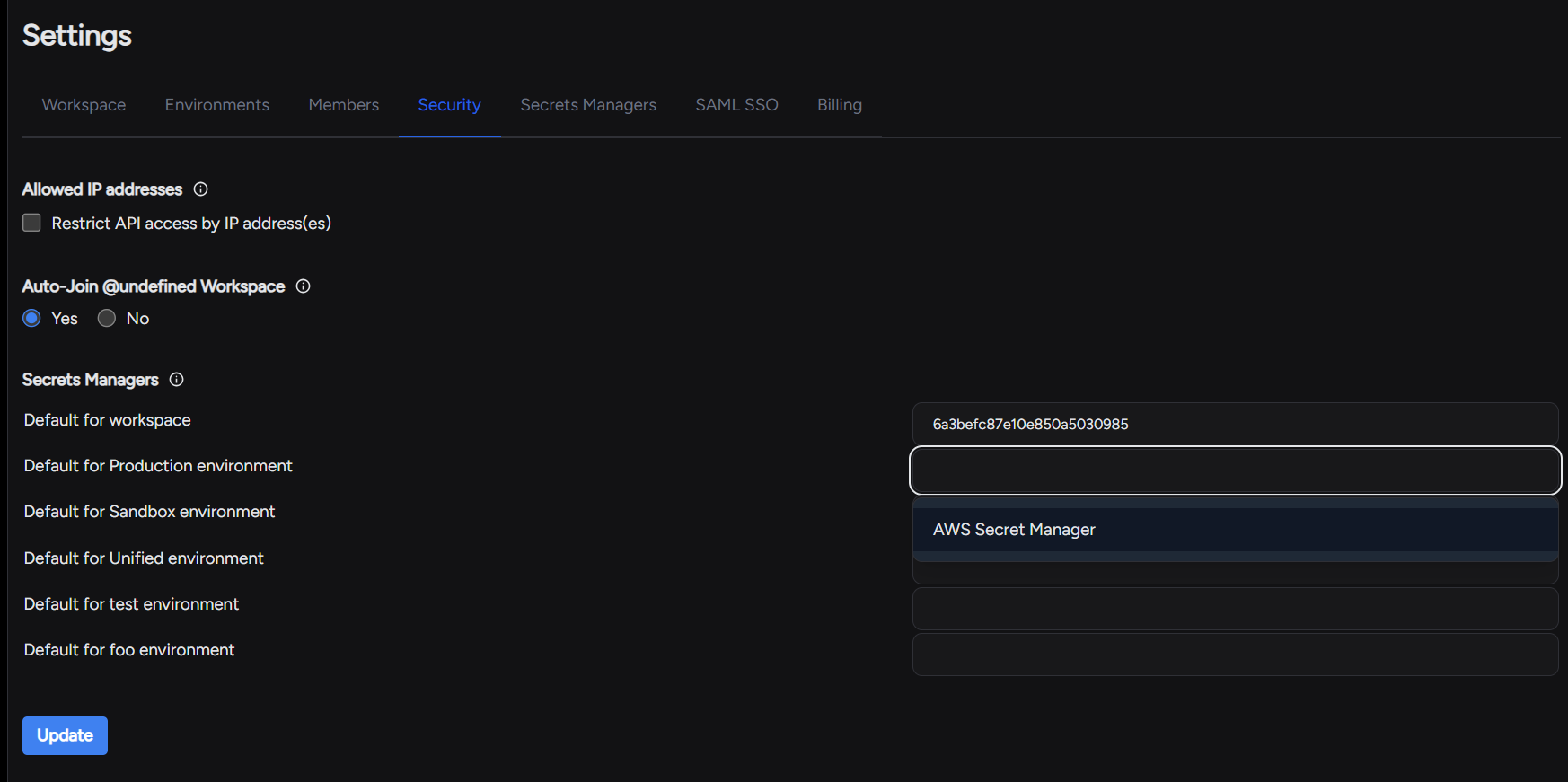
After creating one or more secrets managers, open the Security settings page:
https://app.unified.to/settings/security
In this section, choose how Unified should route credentials:
- Default secrets manager: Used when no environment-specific secrets manager is configured.
- Environment-specific secrets managers: Used for credentials belonging to specific environments.
For example:
| Environment | Secrets manager used |
|---|---|
| Production | Production vault |
| Sandbox | Sandbox vault |
| Any other environment | Default vault |
 |
How Unified Chooses A Secrets Manager
When Unified stores or refreshes credentials, it resolves the target secrets manager in this order:
- If the credential already has a specific secrets manager assigned, Unified keeps using that secrets manager.
- If the credential belongs to an environment with a configured secrets manager, Unified uses that environment-specific secrets manager.
- Otherwise, Unified uses the workspace default secrets manager.
- If no secrets manager applies, Unified stores credentials encrypted in Unified's database.
You can use only a workspace default, only environment-specific secrets managers, or both together.
What Gets Stored In Your Secrets Manager
Unified stores sensitive credential fields, such as OAuth client secrets, access tokens, refresh tokens, API keys, private keys, and similar authentication material.
Unified keeps only the reference needed to find the secret again. The actual credential value is stored in the selected secrets manager.
Non-sensitive metadata, such as integration type, environment name, workspace configuration, and routing references, remains in Unified.
What Happens When You Change The Configuration
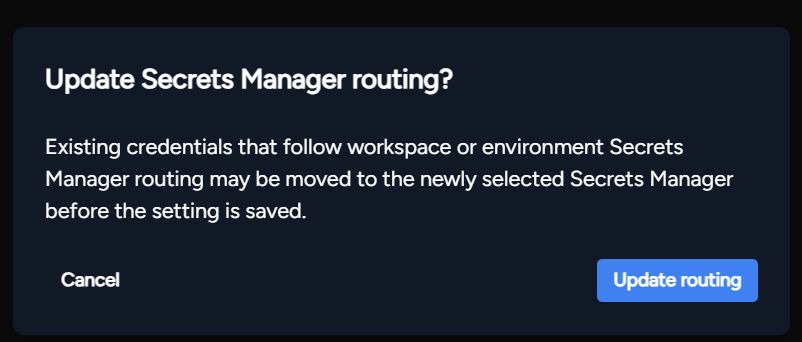
When you change the default secrets manager or an environment-specific secrets manager, Unified updates affected credentials in the background.
This can include moving credentials:
- From Unified encrypted storage into a secrets manager.
- From one secrets manager to another.
- From an environment-specific secrets manager back to the default secrets manager.
The settings update is accepted immediately, and the credential move happens asynchronously. During the move, existing credentials remain usable.
What Happens When You Delete A Secrets Manager
If you delete a secrets manager, Unified moves credentials that used that secrets manager to the best available fallback:
- The matching environment-specific secrets manager, if one is configured.
- Otherwise the workspace default secrets manager, if one is configured.
- Otherwise Unified encrypted database storage.
You should review the warning in the UI before deleting a secrets manager so you understand where credentials will move.
Recommended Setup
For most teams:
- Create one default secrets manager for the workspace.
- Configure it as the default on the Security settings page.
- Add environment-specific secrets managers only when you need isolation between environments.
For teams with stricter separation requirements:
- Create separate secrets managers for
Productionand any regulated environments. - Configure each environment explicitly on the Security settings page.
- Keep the default secrets manager as a safe fallback for credentials that do not belong to a configured environment.
Frequently Asked Questions
Do I need to create a secrets manager for every environment?
No. If an environment does not have its own secrets manager, Unified uses the workspace default.
What if I do not configure any secrets manager?
Unified stores credentials encrypted in Unified's database.
Can I change the secrets manager later?
Yes. You can change the workspace default or the secrets manager for a specific environment. Unified will move affected credentials in the background.
Will connections stop working during a move?
No. Unified keeps credentials available while the move runs. The move is handled in the background.
Where do I manage secrets manager credentials?
Create and edit secrets managers here:
https://app.unified.to/settings/secrets-managers
Configure which secrets manager is used by default or by environment here:
https://app.unified.to/settings/security
Why is Composio listed as it isn't a Secrets Manager?
We support Composio as a 'read-only' API credentials store for those end-customers that have previously authorized their accounts on Composio and do not wish to re-authorize.
This is a read-only credentials store as Composio still manages the OAuth2 access tokens by refreshing and Unified cannot duplicate that function.
How do I list existing secrets in a Secrets Manager account?
You may want to manually update an existing connection with a Secrets Manager by updating that connection. You will need to supply the Secrets Manager ID, which you could get by listing your Secrets Managers. To get the ID of the actual secret containing the API credentials, you will call a private API endpoint:
GET https://api.unified.to/unified/secretsmanager/secrets?secretsmanager_id={id}&query={query}&offset={offset}&limit={limit}
returns an array of
{
id: string; // maps to secretsmanager_id in ISecretsManager
created_at?: (string | Date | number);
updated_at?: (string | Date | number);
name?: string;
description?: string;
}
How do I get a list of credentials needed to authorize a Secrets Manager?
You may want to automate the creation of Secrets Managers by your customers in your own application and use our API to create a Secrets Manager.
To get a list of the required credentials for a specific Secrets Manager, call this API endpoint:
GET https://api.unified.to/unified/secretsmanager/instructions
returns an array of
{
type?: 'aws' | 'azure' | 'gcp' | 'hashicorp' | 'composio';
key: string;
label: string;
instructions?: string;
}