
How to Set Up a Microsoft Teams Bot with Unified
April 20, 2026
Overview
If your Microsoft Teams bot connection is created successfully in Unified but later API calls fail with
No authorization information present on the request, the issue is usually not OAuth.
OAuth connects Microsoft 365 to Unified, but your bot still needs to be:
- packaged correctly
- uploaded to Teams
- installed in the correct Team, channel, or chat
Without this, API calls will fail due to missing context.
⚠️ Important Clarification (Common Issue)
- The manifest downloaded from Microsoft Entra app registration is NOT a valid Teams manifest
- The Microsoft 365 schema is also not the correct reference
You must use the Microsoft Teams manifest schema:
https://learn.microsoft.com/en-us/microsoftteams/platform/resources/schema/manifest-schema
Using the wrong manifest will result in errors like:
Manifest parsing error message unavailable
What You'll Need
Before starting:
- Guide: https://docs.unified.to/guides/how_to_get_your_oauth_2_credentials_for_microsoft_dynamics_365
- A Microsoft Entra app / bot registration
- A Microsoft Teams app package (
.zip) - Permission to upload custom apps in Teams
- A Unified connection using Microsoft Teams (bot)
Create a Valid Teams App Package
Your .zip must include:
manifest.json- Color icon (192×192 PNG)
- Outline icon (32×32 PNG)
Recommended Approach (Avoid Manual Errors)
Instead of writing JSON manually, use:
👉 Teams Developer Portal
This allows you to:
- Configure your bot via UI
- Set scopes correctly
- Generate a valid app package
- Avoid manifest parsing errors
Manifest Checklist
Ensure your manifest.json includes:
- Valid app ID
- Bot capability with correct
botId - Required scopes:
teamgroupchatpersonal(optional)
Use:
team→ for channelsgroupchat→ for chats
Minimal Manifest Template (Reference)
{
"$schema":"https://developer.microsoft.com/en-us/json-schemas/teams/v1.16/MicrosoftTeams.schema.json",
"manifestVersion":"1.16",
"version":"1.0.0",
"id":"YOUR-APP-ID",
"name": {
"short":"My Teams Bot",
"full":"My Teams Bot"
},
"description": {
"short":"Bot for Teams",
"full":"Bot for Teams integrated with Unified"
},
"developer": {
"name":"Your Company",
"websiteUrl":"https://yourdomain.com",
"privacyUrl":"https://yourdomain.com/privacy",
"termsOfUseUrl":"https://yourdomain.com/terms"
},
"icons": {
"color":"color.png",
"outline":"outline.png"
},
"accentColor":"#FFFFFF",
"bots": [
{
"botId":"YOUR-ENTRA-APP-ID",
"scopes": ["team","groupchat"]
}
]
}
⚠️ Notes (Follow as Steps)
- Replace
YOUR-APP-IDandYOUR-ENTRA-APP-IDwith your actual app ID - Ensure both icons exist in the
.zipfile - Use this only as a reference template, not a full production manifest
Upload the App in Microsoft Teams
Steps:
- Open Apps (left sidebar)
- Click Manage your apps
- Stay on Apps tab
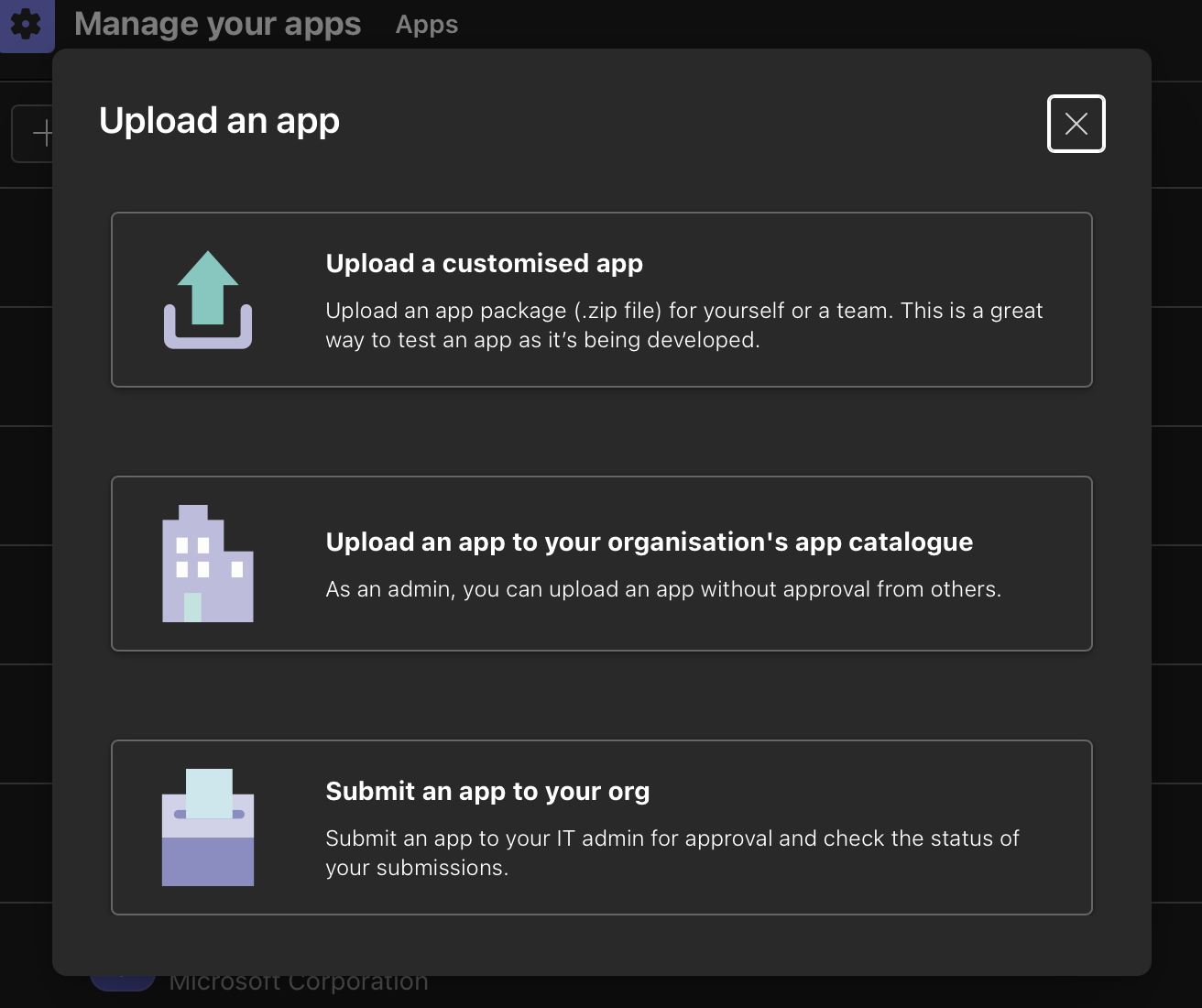
- Click Upload an app
- Upload your
.zip
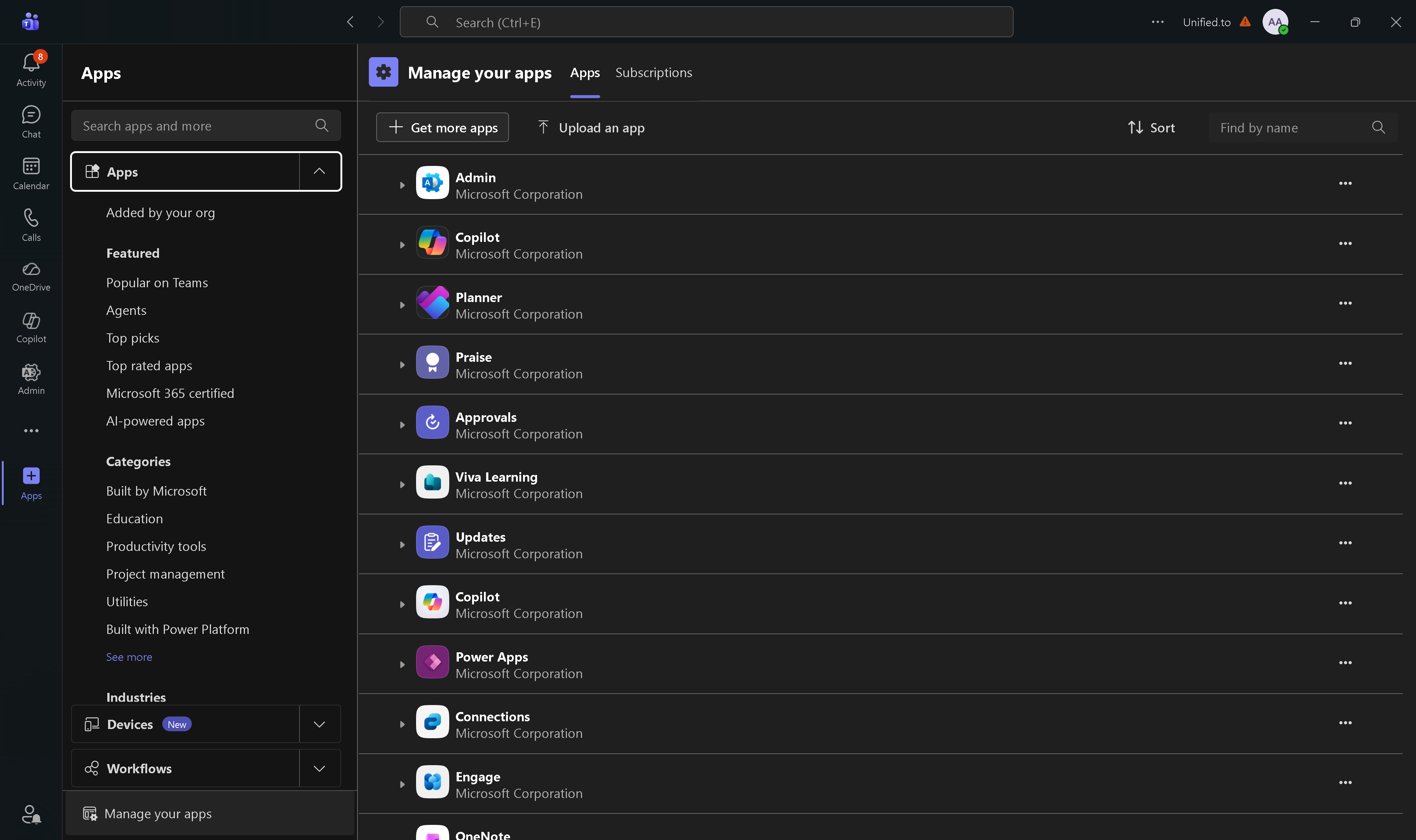
⚠️ If upload option is missing → admin restriction
Install the Bot in the Right Scope
Uploading ≠ installing
You must install the bot in:
- A Team
- A channel
- A group chat
- Personal scope
⚠️ If not installed → API calls will fail
Connect Microsoft Teams (bot) to Unified
Steps:
- Create connection in Unified
- Complete OAuth
- Approve scopes
- Save connection
Common Required Scopes
Channel.ReadBasic.AllChannelMessage.Read.AllChatMessage.ReadChat.ReadChannelMessage.SendChatMessage.Sendoffline_access
💡 If permissions change → reconnect integration
Test the Connection
- Send a message where the bot is installed
- Call Unified messaging API
- Verify read/send works
💡 If connection was created before installation → retry
Troubleshooting
❌ Manifest parsing error
- Wrong manifest type (Entra instead of Teams)
- Wrong schema
❌ App package failed validation
- Missing icons
- Files not at root
- Invalid JSON
botIdmismatch
❌ No authorization information present
- Bot not installed in correct scope
- Missing permissions
- Wrong scope
- Token outdated → reconnect