
How to get your HighLevel API Key and Location ID: Step-by-step guide
April 24, 2023
HighLevel supports authentication with API Key and Location ID. To connect, you'll need to generate secure API Key and Location ID from your account settings.
This short guide shows you how to generate one, whether you're testing in your sandbox or helping customers connect their HighLevel account.
This guide walks you through creating a HighLevel token-based connection using a sub-account (location) API key in Unified.
⚠️ Important Context
HighLevel operates on two levels:
- Agency level (company)
- Sub-account level (location) ✅ (token-based authentication works only here)
To access CRM and HRIS data, you must use a sub-account (location) API key.
Note: HighLevel offers multiple ways to create connections. To avoid issues, follow every step in this guide carefully.
✅ Prerequisites
- You must have Admin or Owner access to the sub-account.
🔧 Step-by-Step Setup
1. Navigate to Your Sub-Account
Go to your HighLevel sub-account (location).
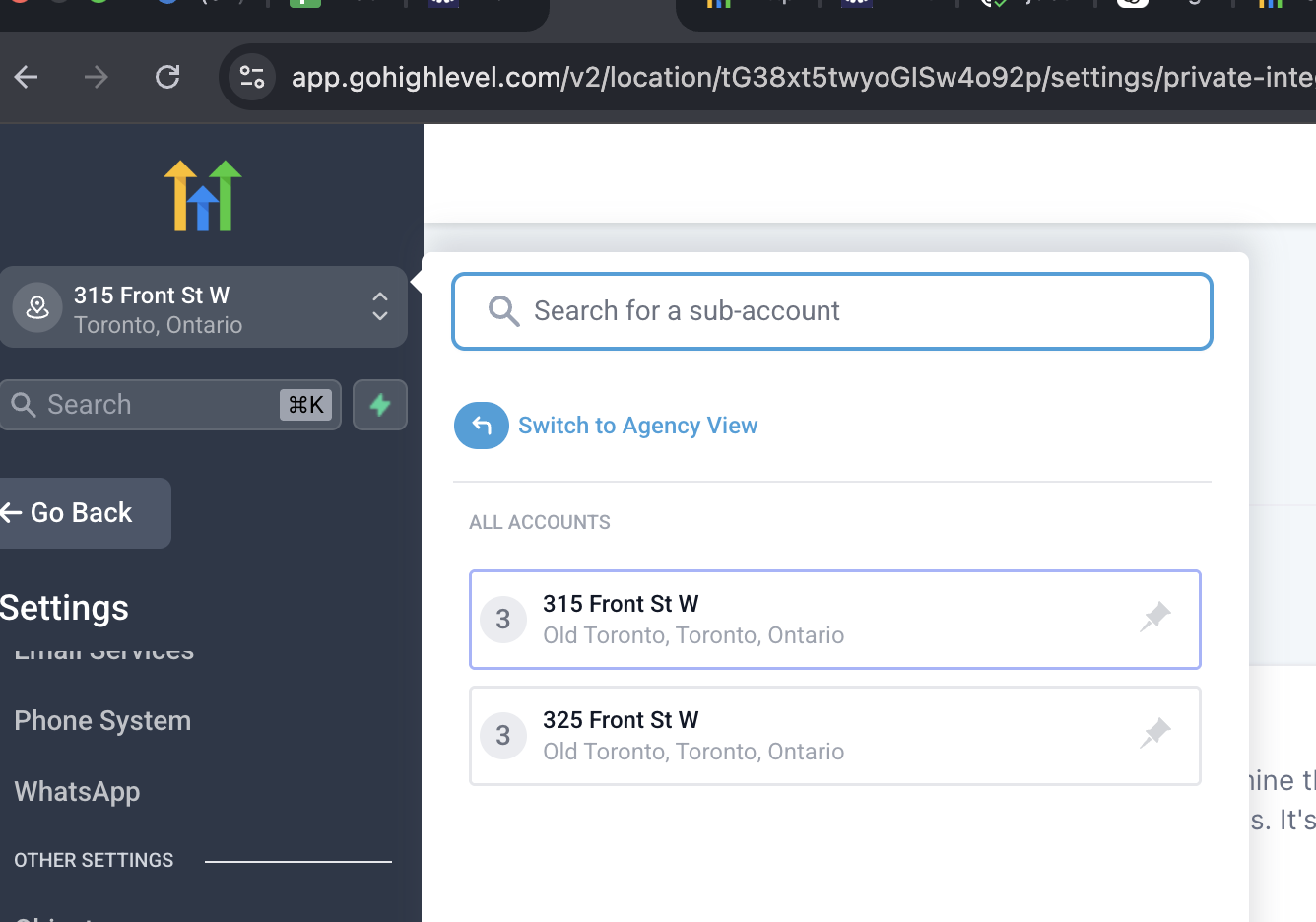
2. Open Private Integrations
- Go to Settings → Private Integrations (inside the sub-account)
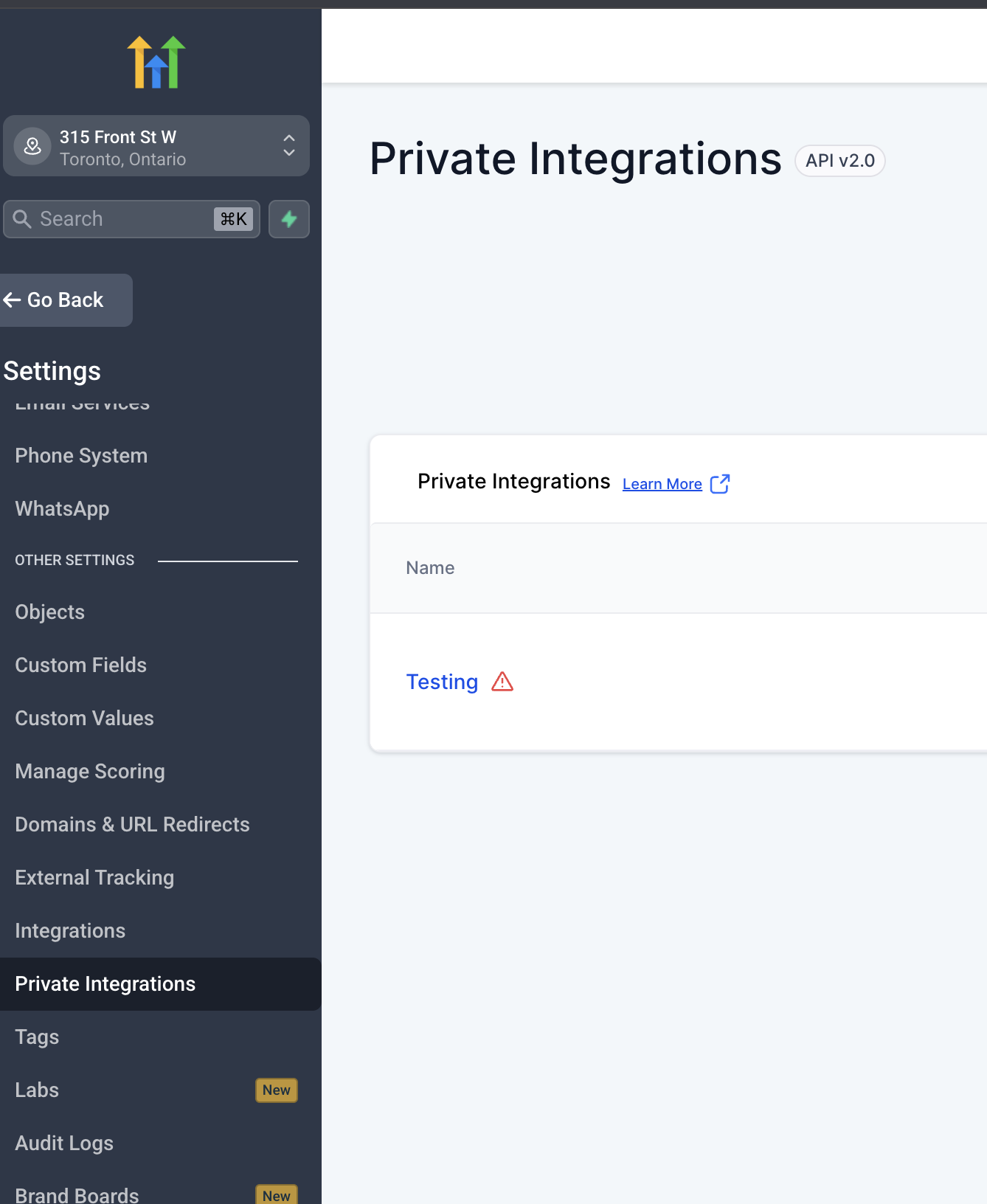
3. Create a New Integration
- Click Create Integration
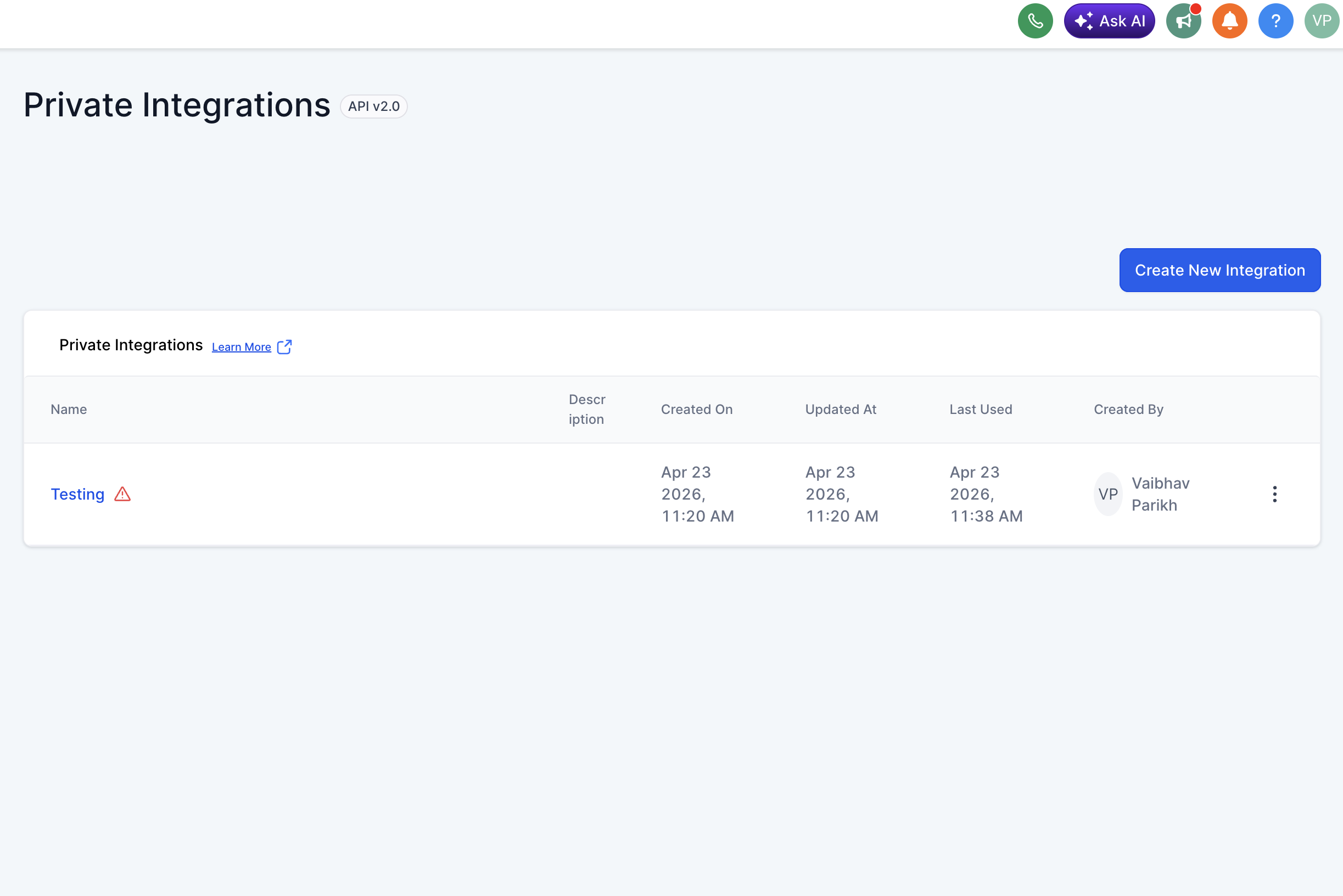
4. Name Your Integration
- Provide a clear name for your token (e.g.,
Unified Integration)
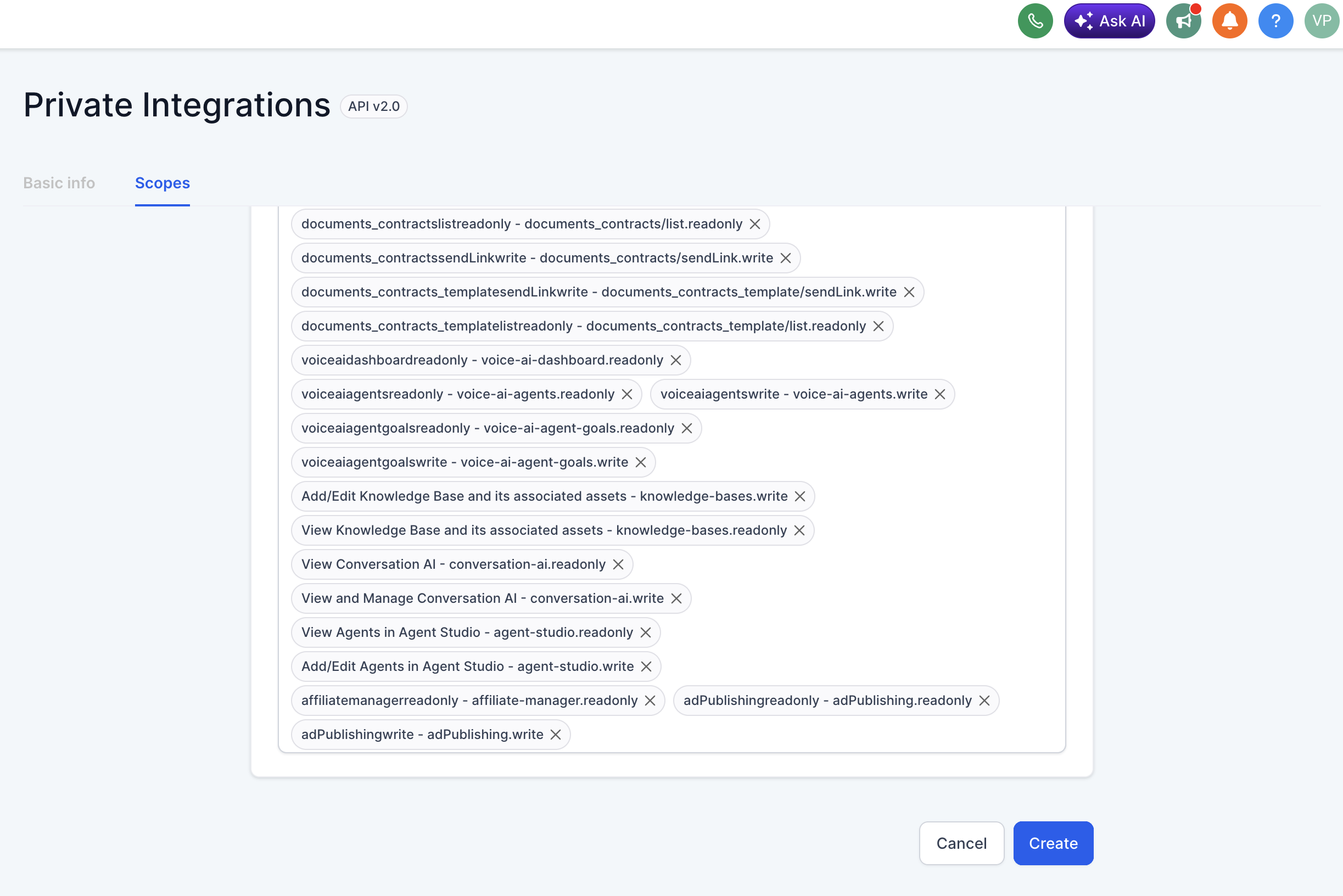
5. Select Required Scopes
Choose scopes based on your use case:
| Permission | Resource | HighLevel Scopes |
|---|---|---|
| Read | CRM Contact | contacts.readonly |
| Write | CRM Contact | contacts.write |
| Read | CRM Company | businesses.readonly, locations/tags.readonly |
| Write | CRM Company | businesses.write, locations/tags.write |
| Read | CRM Deal | opportunities.readonly |
| Write | CRM Deal | opportunities.write |
| Read | HRIS Employee | users.readonly |
| Write | HRIS Employee | users.write |
| Read | CRM Lead | contacts.readonly |
| Write | CRM Lead | contacts.write |
| Read | CRM Pipeline | opportunities.readonly |
| Read | CRM Event | forms.readonly, contacts.readonly |
| Write | CRM Event | contacts.write |
Reference: https://marketplace.gohighlevel.com/docs/Authorization/Scopes
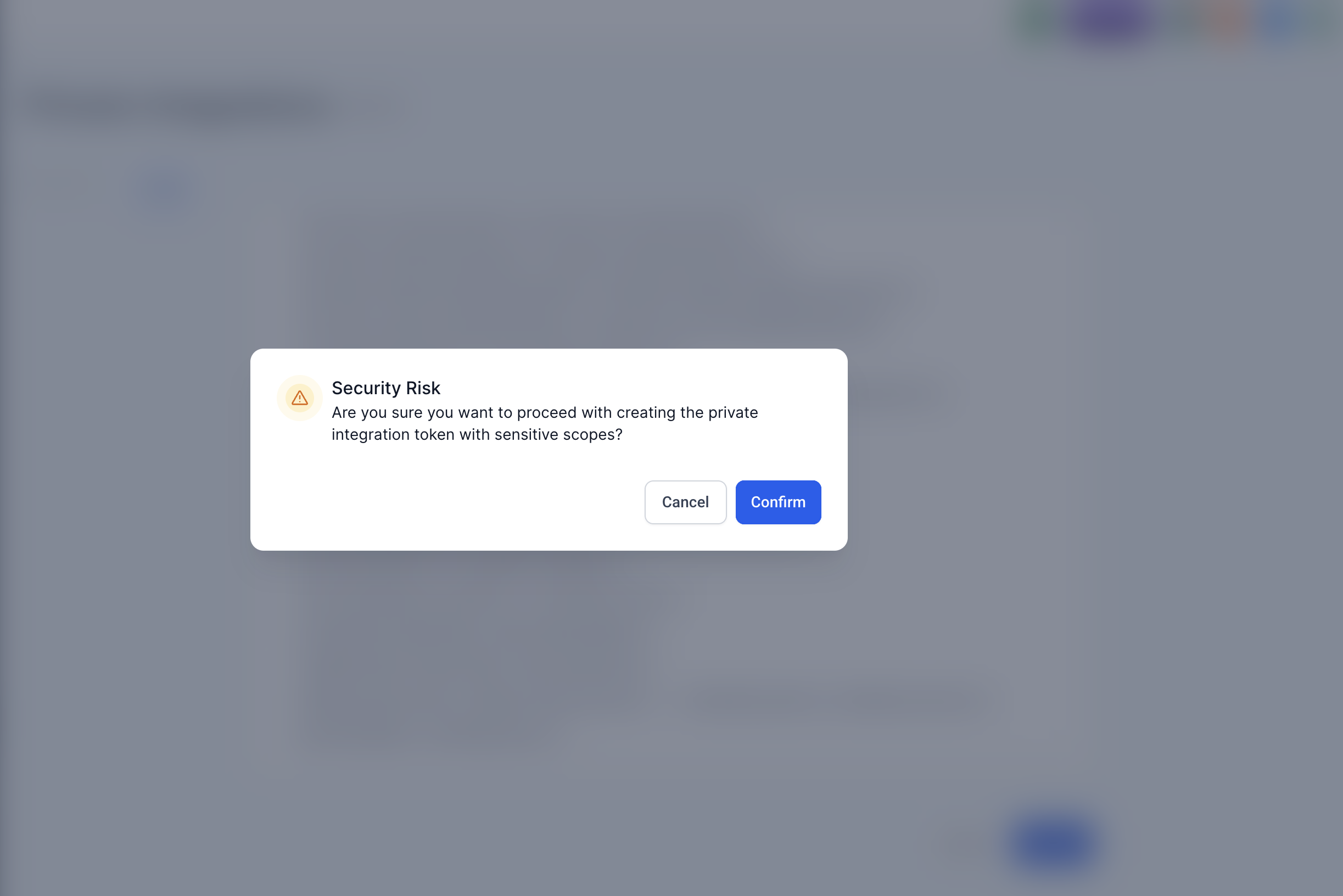
6. Create and Confirm
- Click Create
- Then click Confirm
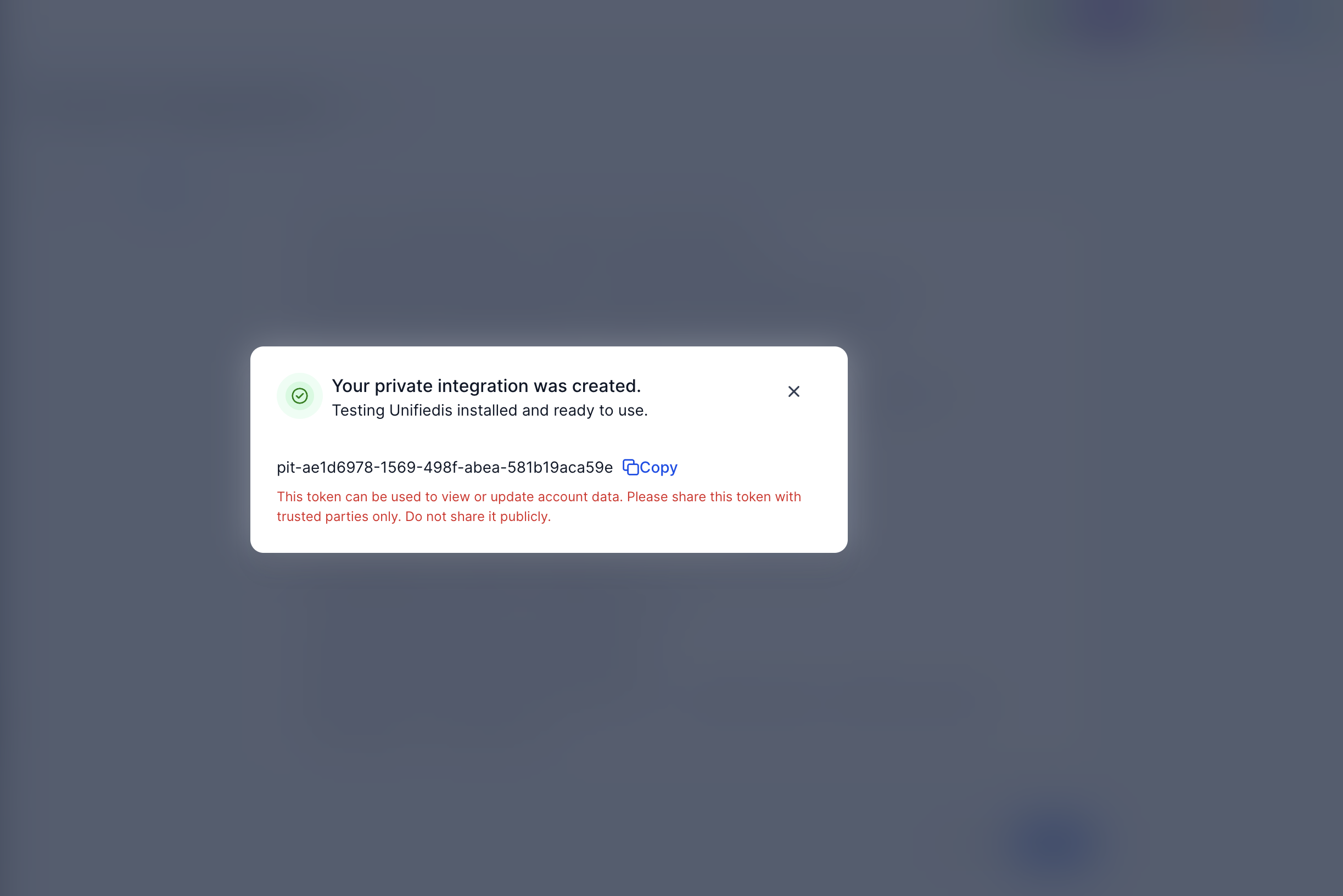
7. Copy API Token
- You will receive an API Token
- Store it securely (you won't be able to retrieve it later)
8. Get Location ID
To find your Location ID:
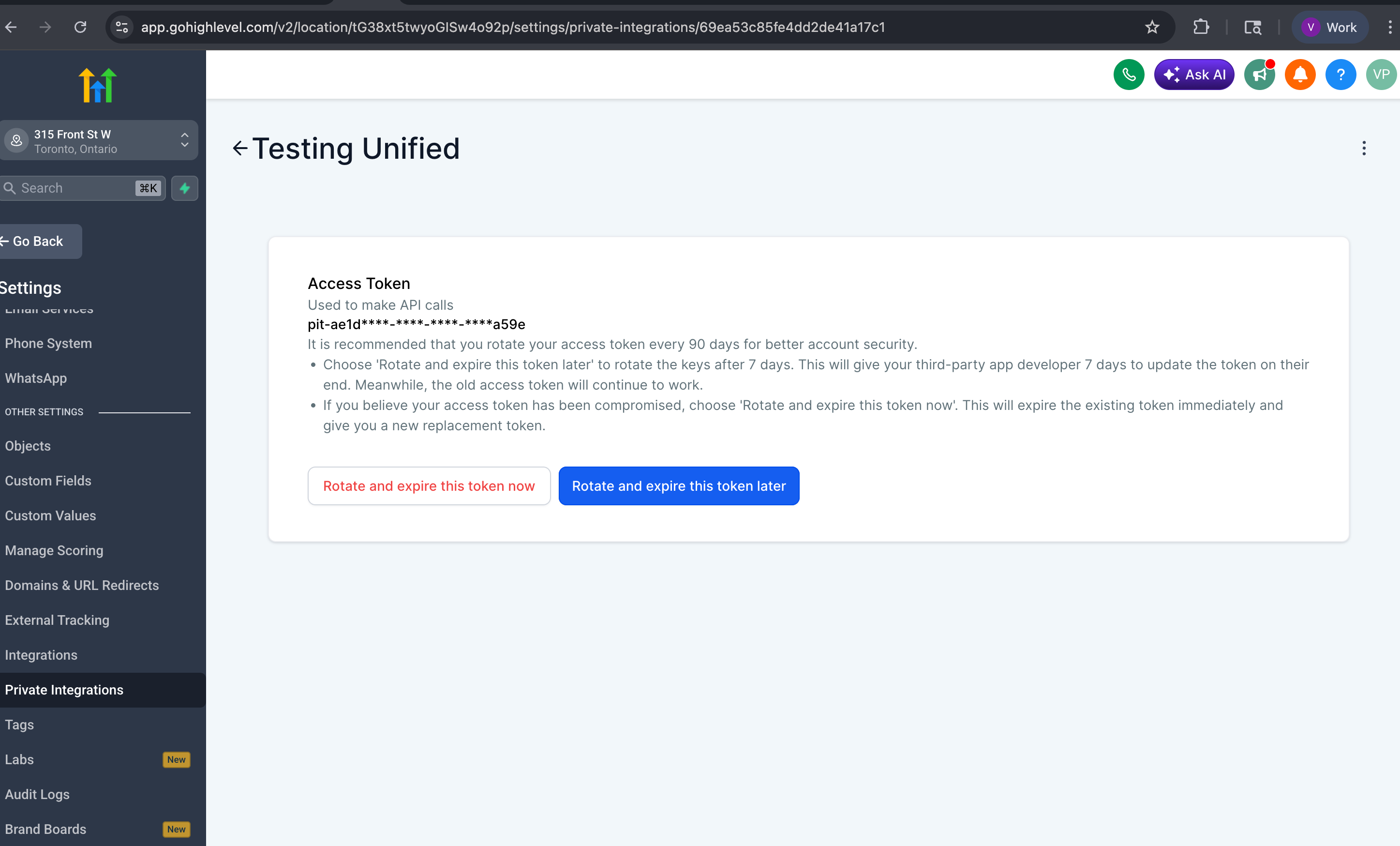
- Look at the URL of your sub-account
Example:
https://app.gohighlevel.com/v2/location/tG38xt5twyoGISw4o92p/settings/private-integrations/...
- The value after
/location/is your Location ID →tG38xt5twyoGISw4o92p
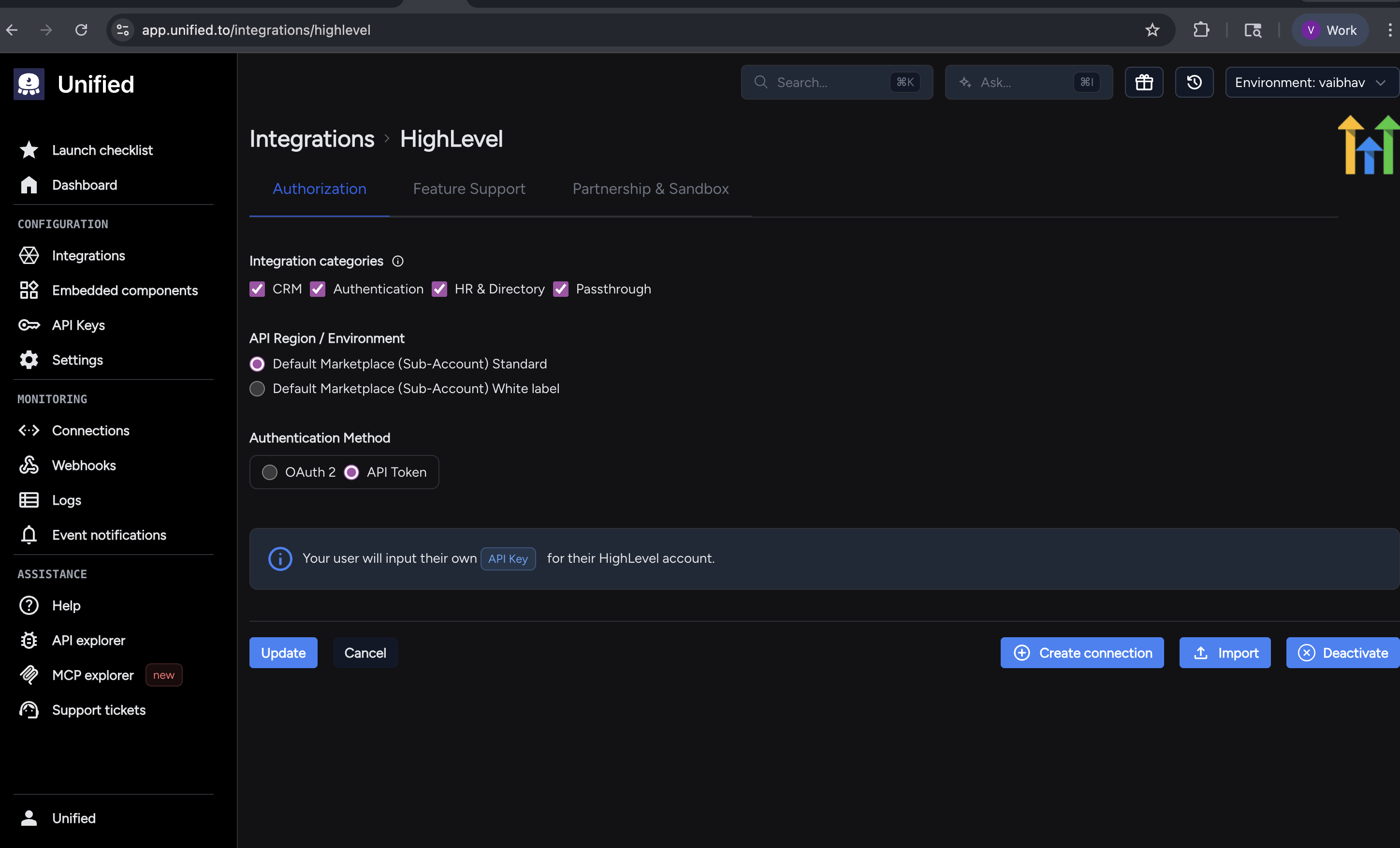
9. Connect in Unified
- Go to: https://app.unified.to/integrations/highlevel
- Select API TOKEN
- Click Activate
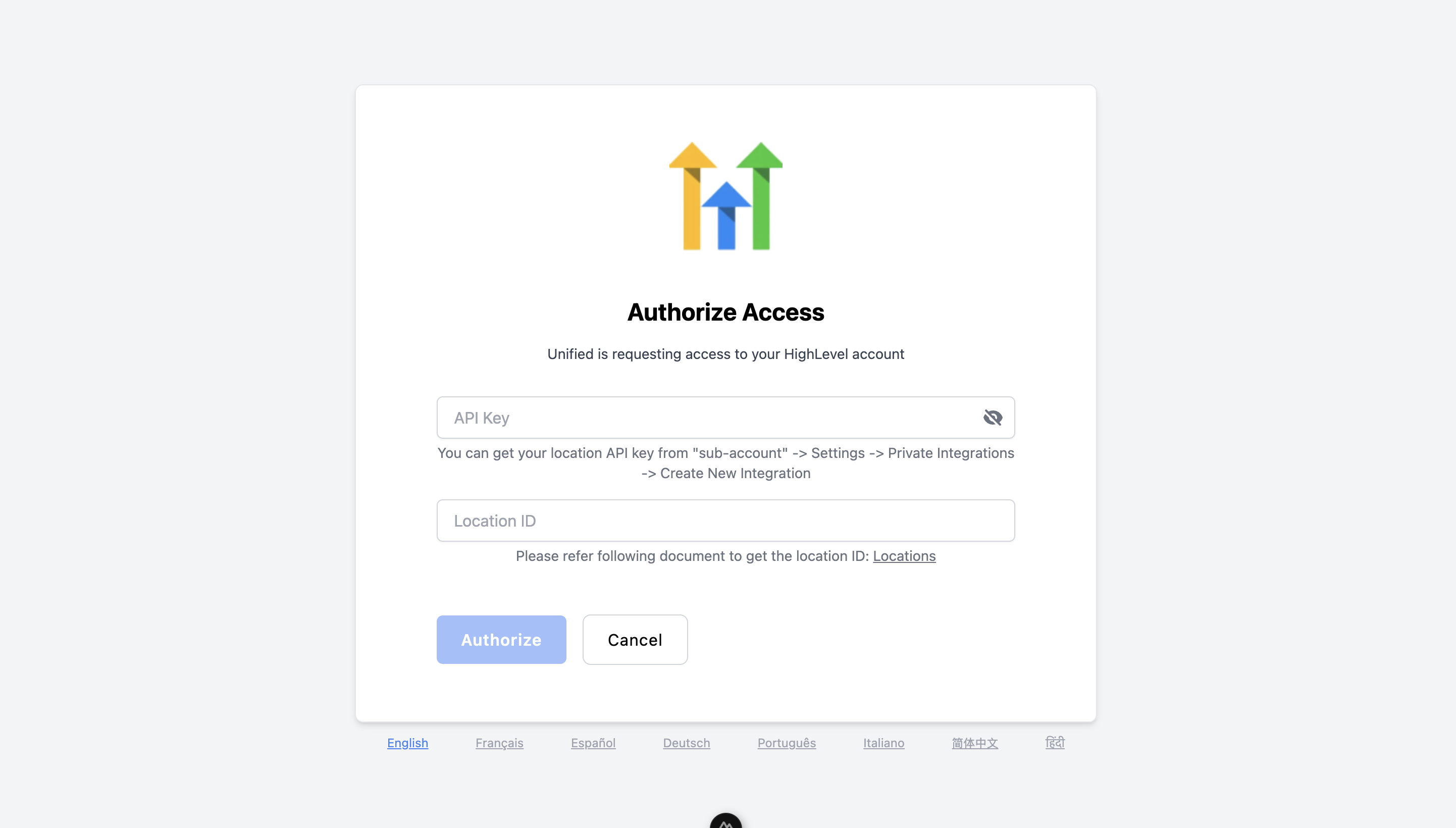
10. Create Connection
- Paste:
- API Token
- Location ID
- Click Create Connection
✅ Done
Your HighLevel token-based connection should now be successfully set up in Unified.
If it doesn't work, double-check:
- You created the token at the sub-account level
- The correct scopes are selected
- The Location ID matches the sub-account
If you have any more doubts or issues, please contact the Unified.to team for support.
You've now created your HighLevel API Key and Location ID - just one of many if you support multiple vendors. Each one adds new auth flows, schema differences, and ongoing maintenance.
Unified.to removes that overhead with unified objects that work across 463 APIs. Map once, launch everywhere. Your team ships features instead of debugging vendor-specific edge cases.
Book a demo to see how much faster you can launch customer integrations with Unified.to.