
Configure Salesforce Meetings and Notes for Unified
February 26, 2026
This guide ensures Salesforce is properly configured so Unified can create crm_event.type === MEETING events crm_event.type === NOTE successfully.
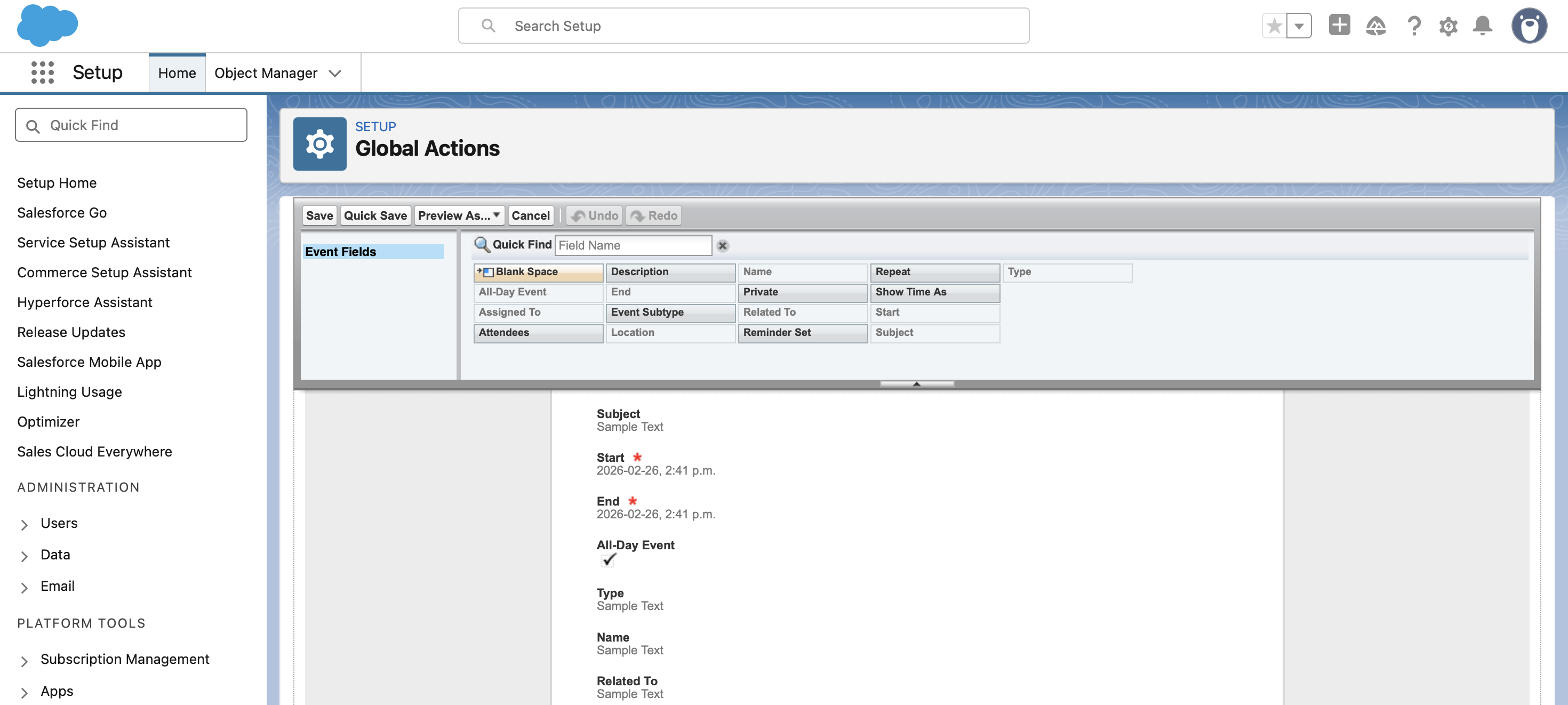
1. Update Global Action (New Event)
Unified uses the Global 'New Event' action (top + button).
Steps
- Go to Setup
- Search for Global Actions
- Click New Event
- Click Edit Layout
- Add the Type field to the layout
- Save
2. Ensure 'Type' Field Supports MEETING
Steps
- Go to Setup
- Open Object Manager
- Select Event
- Go to Fields & Relationships
- Click Type
Verify
- Confirm that
MEETINGexists as a picklist value - If not, add
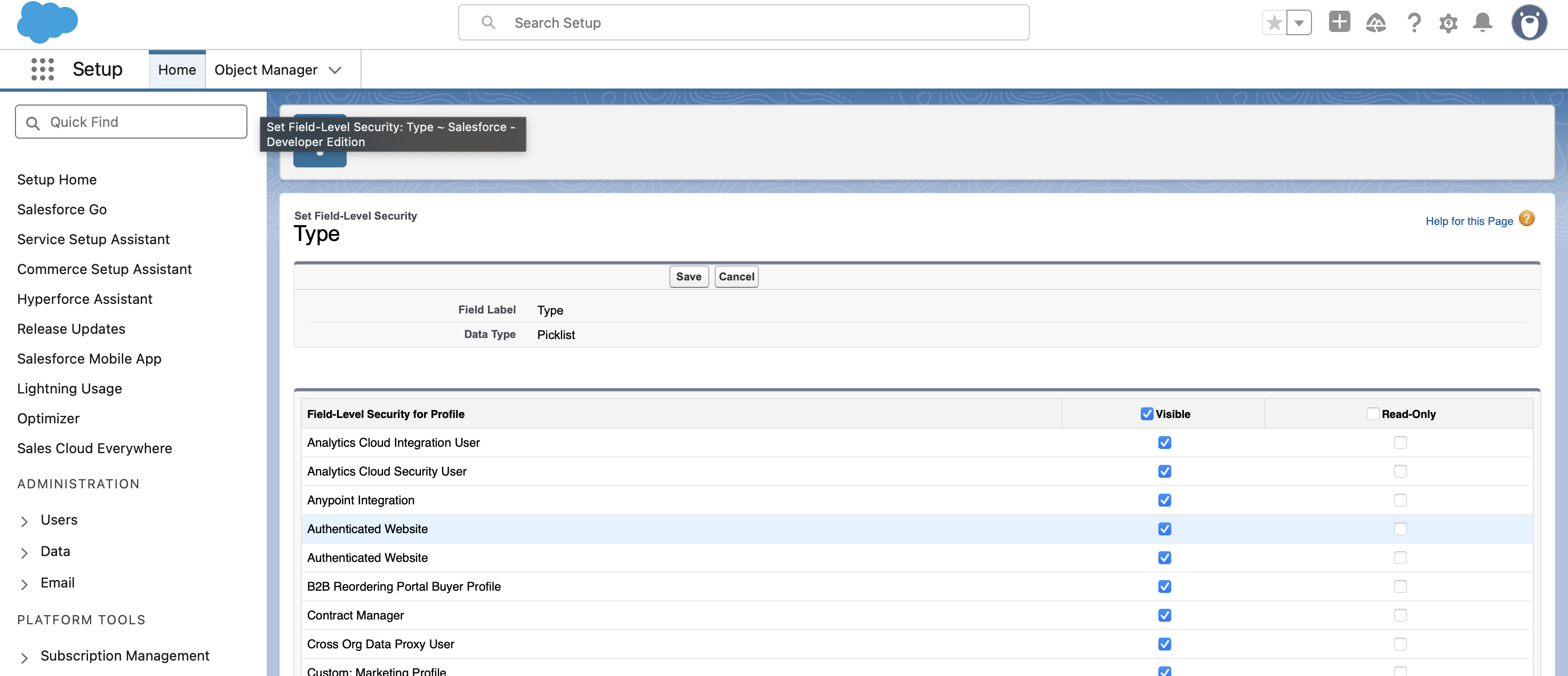
MEETING - Click Set Field-Level Security
- Ensure Visible is checked for all required profiles
- Save
Also click into the Type field and ensure it is enabled and visible everywhere it needs to be used.
3. Add Type to Event Page Layout
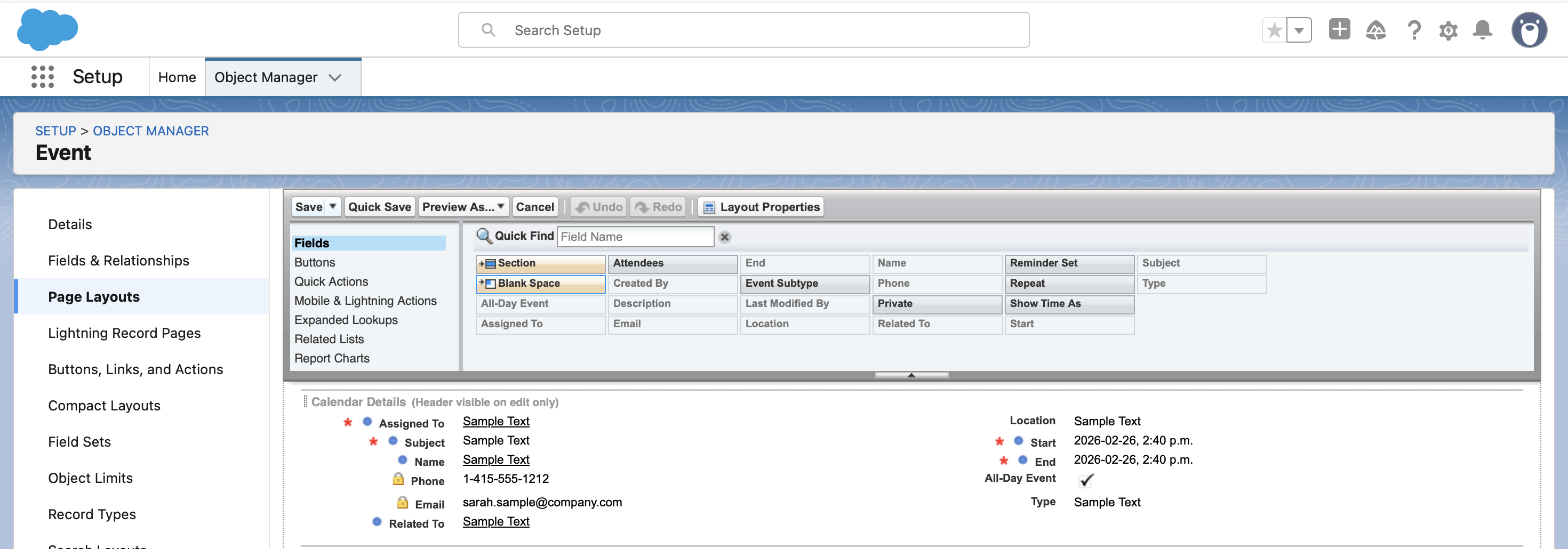
- In Object Manager → Event
- Click Page Layouts
- Edit the active layout
- Add the Type field to the layout
- Save
4. Update Compact Layout
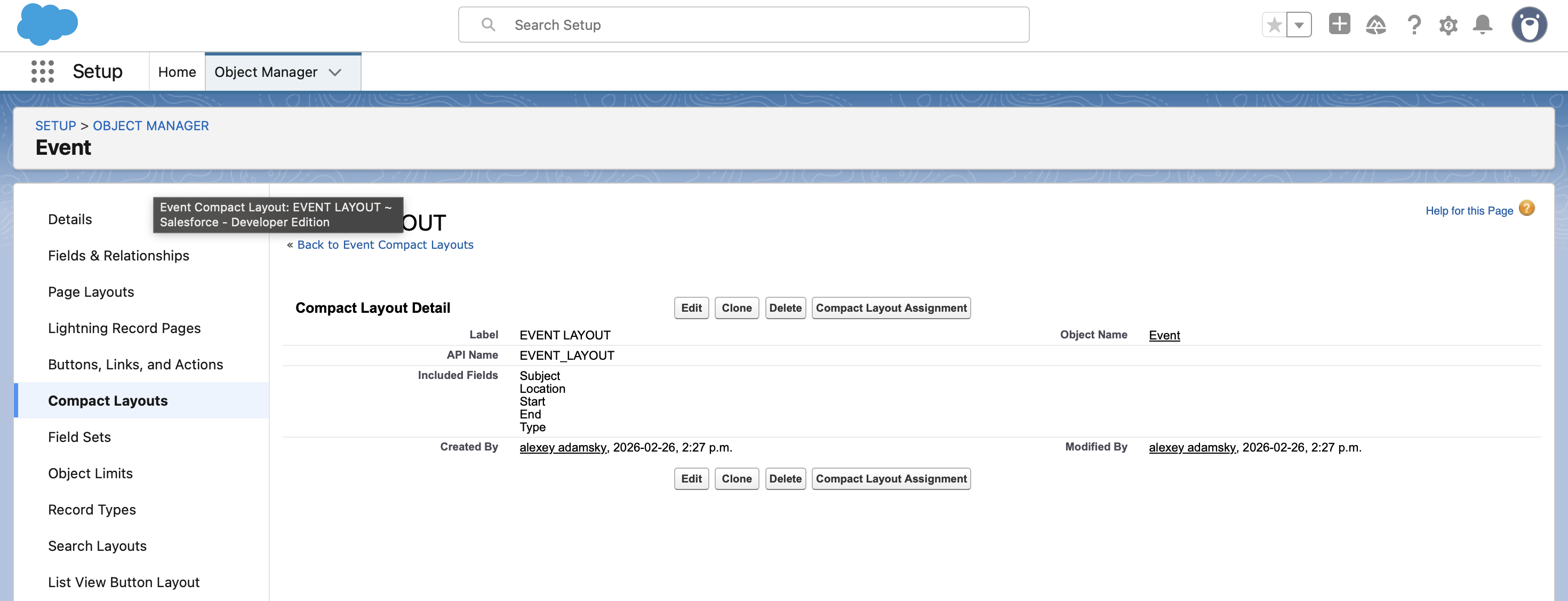
Unified may rely on compact layout visibility.
Steps
- Go to Object Manager → Event
- Click Compact Layouts
- Duplicate System Default
- Add Type
- Save
- Click Compact Layout Assignment
- Assign your new layout as the Primary layout
- Save
5. Enable Notes for crm_event.type === NOTE
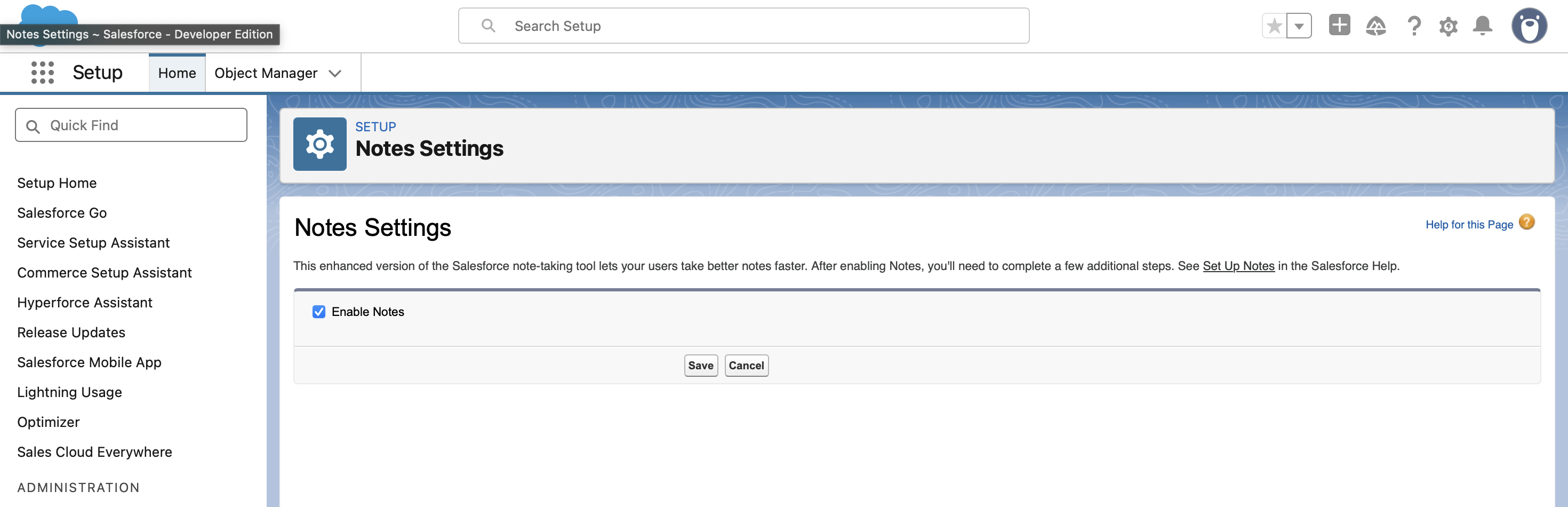
Unified uses Salesforce Enhanced Notes when creating crm_event.type === NOTE.
Enable Enhanced Notes
- Go to Setup
- Search for Notes Settings
- Enable Enhanced Notes
- Save
Final Checklist
- Global Action 'New Event' includes Type
MEETINGexists in the Type picklist- Field-level security for Type is set to Visible
- Type is added to the Event Page Layout
- Compact Layout updated and assigned
- Enhanced Notes is enabled for
crm_event.type === NOTE
After completing these steps, Unified will be able to create meetings with crm_event.type: MEETING and notes with crm_event.type: NOTE successfully.