
How to Retrieve Microsoft Dynamics 365 Business Central Credentials
January 21, 2026
This guide walks you through creating an Azure App Registration, granting the correct permissions, and collecting the credentials required to integrate with Microsoft Dynamics 365 Business Central using Unified.
1. Create or Select an App Registration
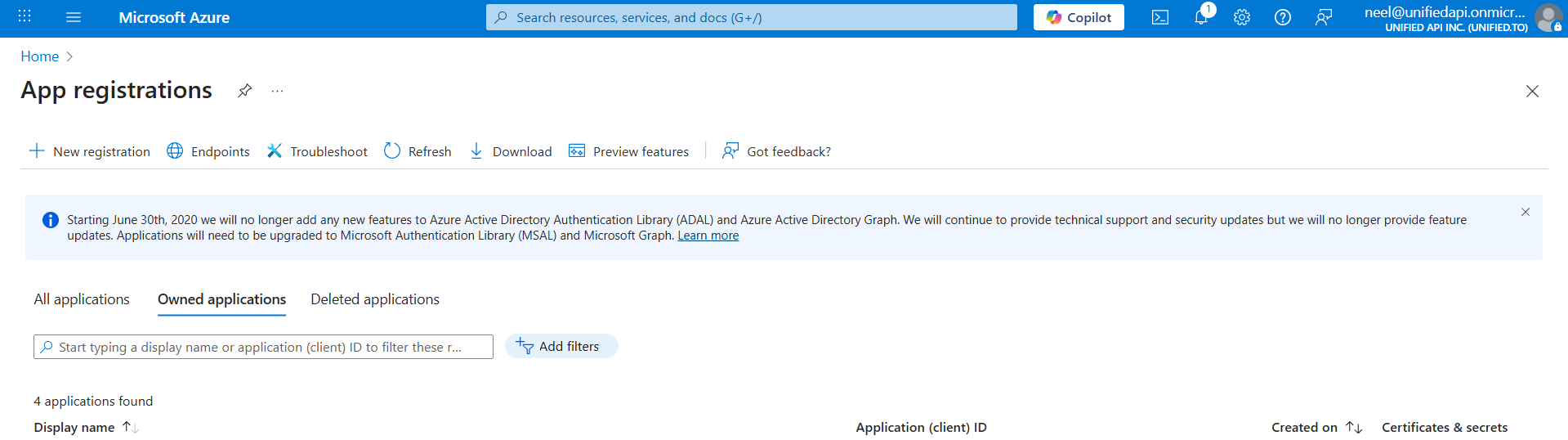
- Go to the Azure Portal:
👉 https://portal.azure.com/#view/Microsoft_AAD_RegisteredApps/ApplicationsListBlade - Navigate to App registrations
- Either:
- Select an existing app, or
- Click New registration to create a new one
2. Configure Redirect URI
- Inside your App Registration, go to Authentication
- Under Redirect URI (optional):
- Select Web
- Enter the redirect URL provided by Unified
https://api.unified.to/oauth/code
- Click Save
3. Grant Business Central API Permissions
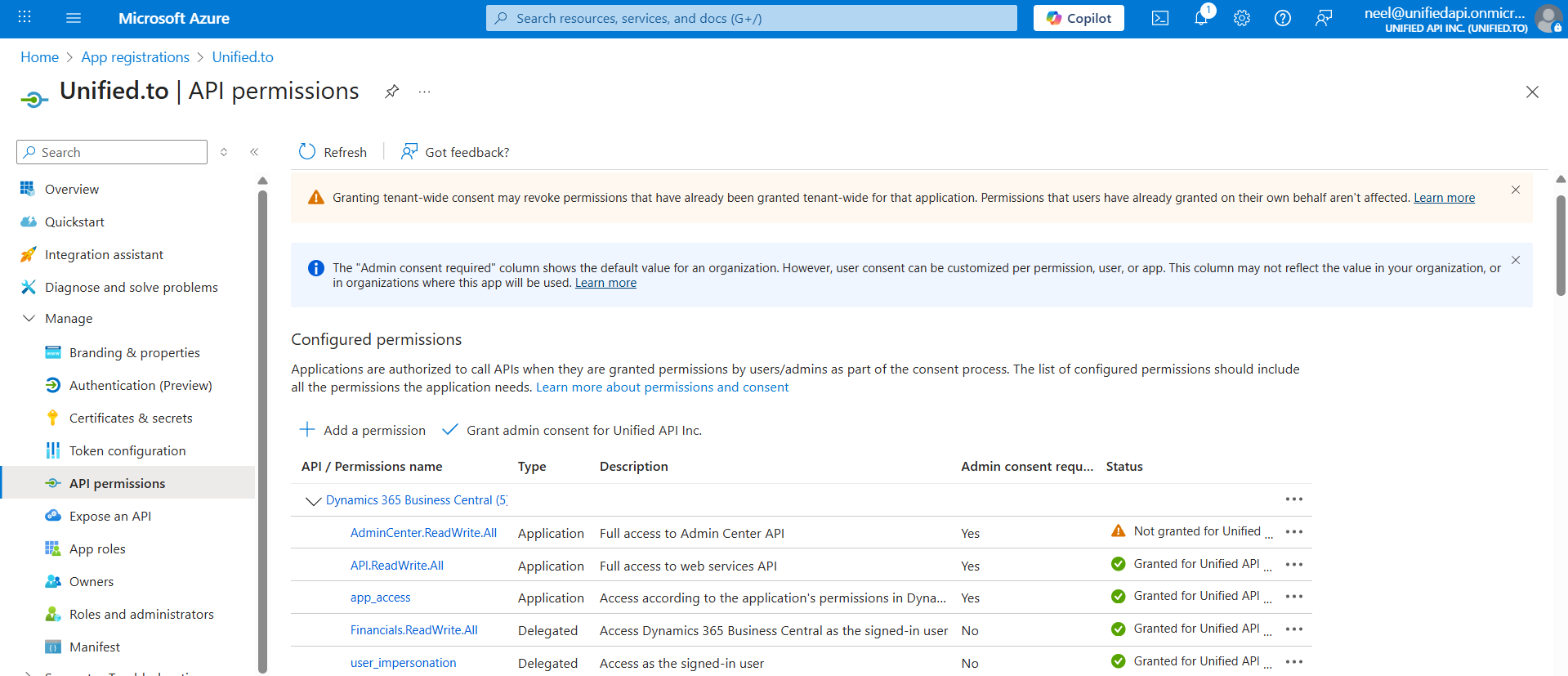
- In the App Registration, go to API permissions
- Click Add a permission
- Select APIs my organization uses
- Search for and select Microsoft Dynamics 365 Business Central
- Choose Delegated permissions
- Select the required permissions (typically default access)
- Click Add permissions
- If required, click Grant admin consent
4. Get Client ID and Client Secret
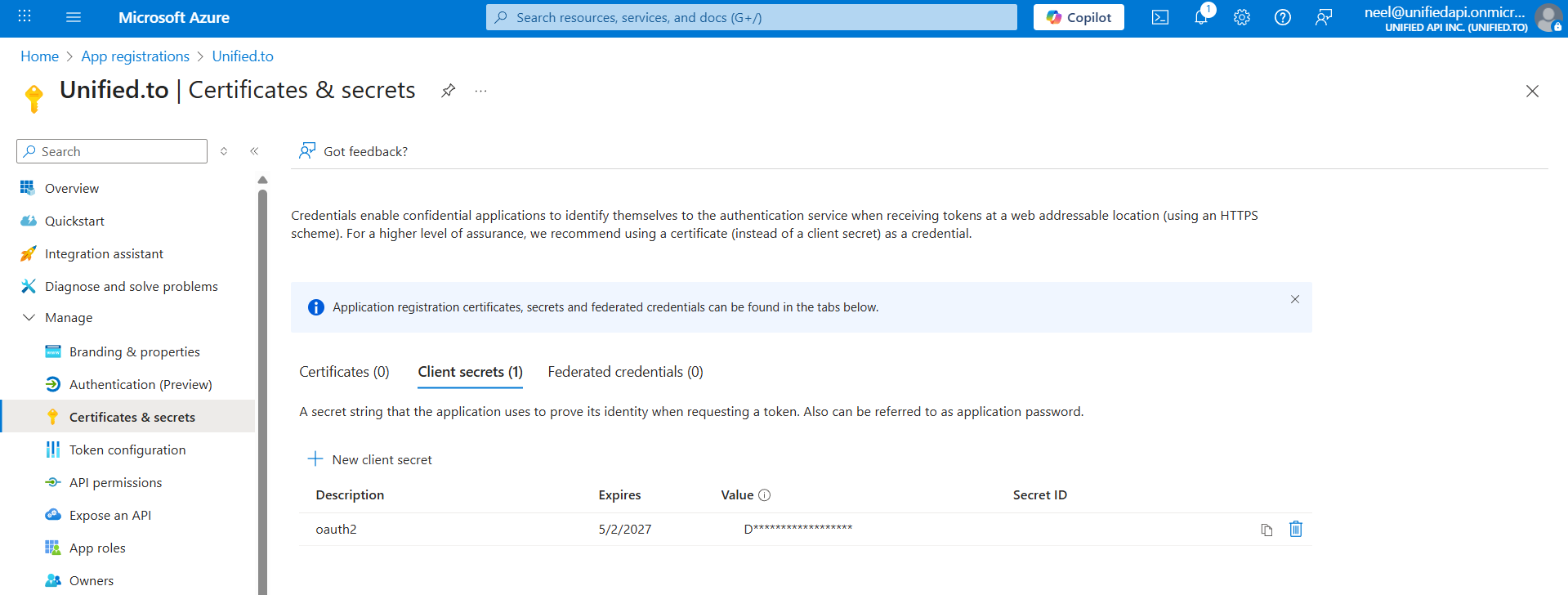
- In the App Registration, go to Certificates & secrets
- Copy the following:
- Client ID (from the app Overview page)
- Client Secret
- Create a new client secret if one does not exist
- Copy it immediately (it will not be shown again)
⚠️ Store the client secret securely.
5. Retrieve Business Central Company Name
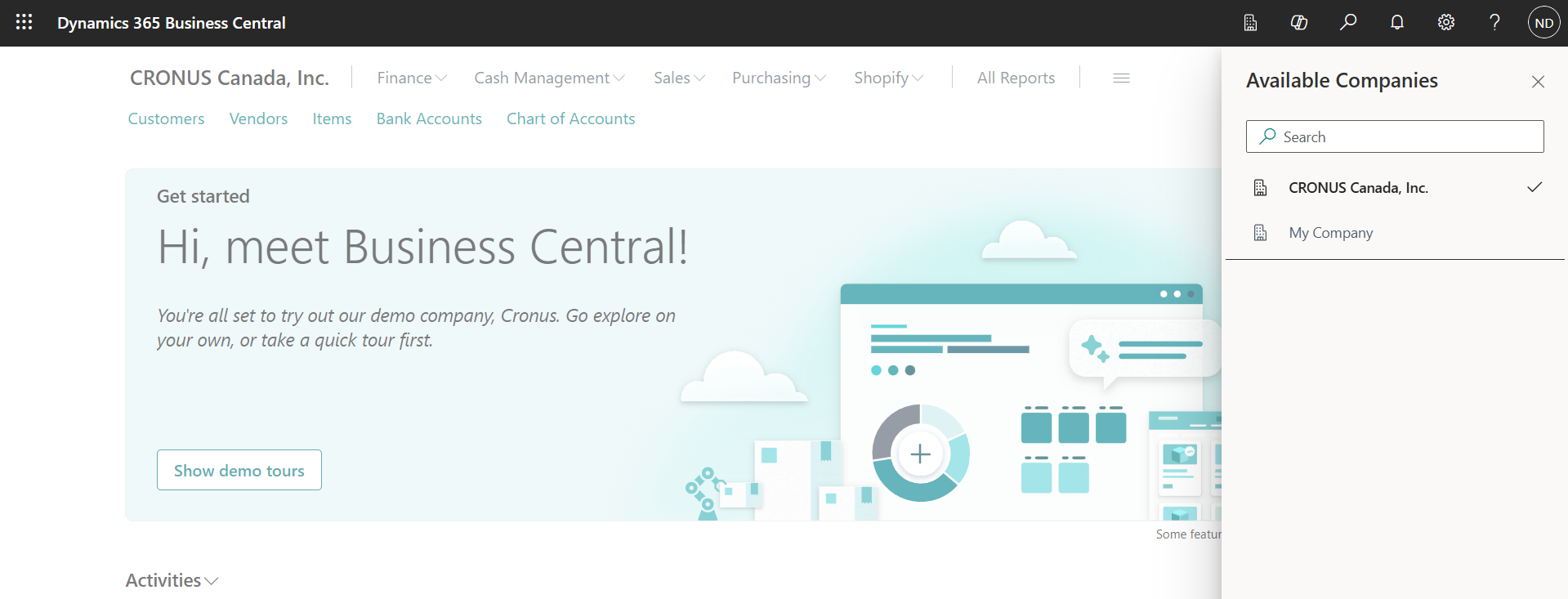
Unified also requires the Business Central company name.
- Go to:
👉 https://businesscentral.dynamics.com/ - Sign in to your Business Central account
- Locate the company name using either method:
- The company name shown in the top-left corner, or
- Click the building (company) icon in the navigation bar and copy the desired company name
Use exactly the company name as shown.
6. Information You Will Need for Unified
After completing the steps above, you should have:
- ✅ Client ID
- ✅ Client Secret
- ✅ Business Central Company Name
These values are required to complete the Business Central connection in Unified.