
How to get your OAuth 2 credentials for Gmail
June 25, 2024
Last updated: May 2026
To access Google services such as Gmail (also known as Google Mail) through the Unified API, you'll generate and retrieve your OAuth 2 credentials in the Google Cloud Console, then enter them in Unified.to.
Create or select a project on Google Cloud Console
- Navigate to the Google Cloud Console.
- From the top nav bar, select an existing project or create a new one.
- If creating a new project, name it whatever you want and click Create.
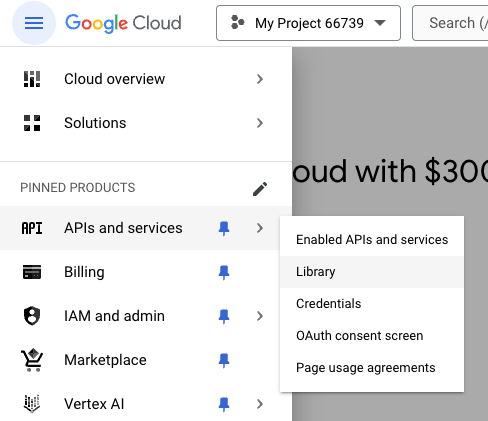
Enable the Gmail API
- With your project selected, open the left sidebar and navigate to APIs & Services > Library (or search for Library from the top nav bar).
- Search for Gmail API and click the matching result.
- Click Enable.
Configure your OAuth consent screen
Google requires you to configure the OAuth consent screen before it will let you create an OAuth client ID. The consent screen is what users see when they grant your app access to their Gmail.
- Open the left sidebar and navigate to APIs & Services > OAuth consent screen.
- Choose the user type:
- Internal — for Google Workspace organization-internal apps.
- External — for consumer Gmail accounts or public apps.
- Fill in the required fields: app name, user support email, and developer contact information (and, for production, your authorized domains).
- Complete the consent screen setup.
Get your OAuth 2 credentials
- Navigate to APIs & Services > Credentials (or search for Credentials from the top nav bar).
- Click Create Credentials and select OAuth client ID.
- Select Web application as the application type, and name your app whatever you want.
- Under Authorized redirect URIs, enter
https://api.unified.to/oauth/code(or the corresponding EU/AU regional URL if your workspace is hosted there). - Click Create.
- A dialog will appear displaying your new Client ID and Client Secret. Copy both — you'll need them for the next step.
Store your Client Secret securely. Never commit it to source control or include it in client-side code; keep it in environment variables or a secrets manager.
Activate Gmail in Unified.to
- Navigate to the Gmail integration page on Unified.to.
- On the Authorization tab, with OAuth 2 selected as the authentication method, enter your Client ID and Client Secret.
- Click Update to save your changes and activate the Gmail integration.
Set your OAuth 2 reauthentication policy
If you're connecting a Google Workspace account, make sure your reauthentication policy is set correctly for the integration to keep functioning. This step requires Google Workspace admin access and doesn't apply to consumer Gmail accounts.
- In the Google Workspace Admin Console, navigate to Menu > Security > Access and data control > Google Cloud session control.
- On the left, select the organizational unit where you want to set the session length. For all users, select the top-level organizational unit. (An organizational unit initially inherits its parent's settings.)
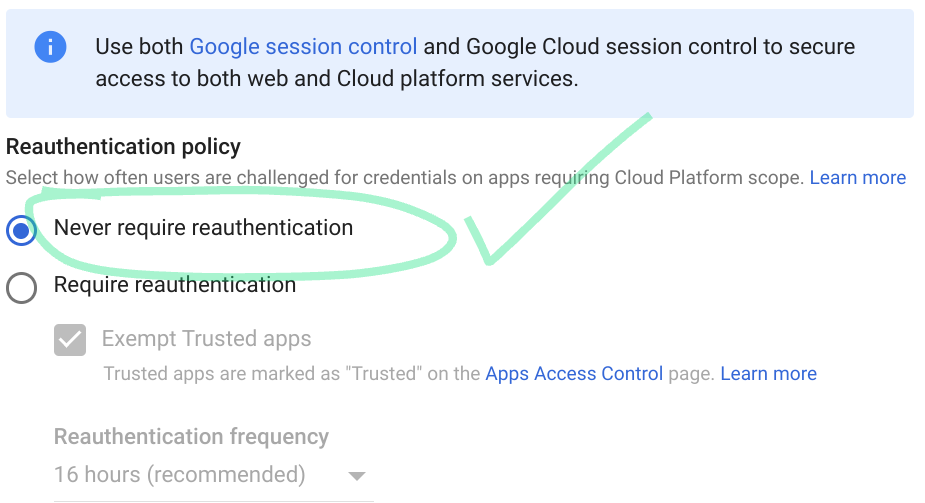
- Under Reauthentication policy, select Never require reauthentication.
You can now use the Unified API to build new experiences with Gmail. Happy building!